NAS for home: drive bays, RAID basics, backups and media streaming
What a home NAS does, how many drive bays you need, what RAID does and doesn't protect, how to back it up, and what matters for streaming video.
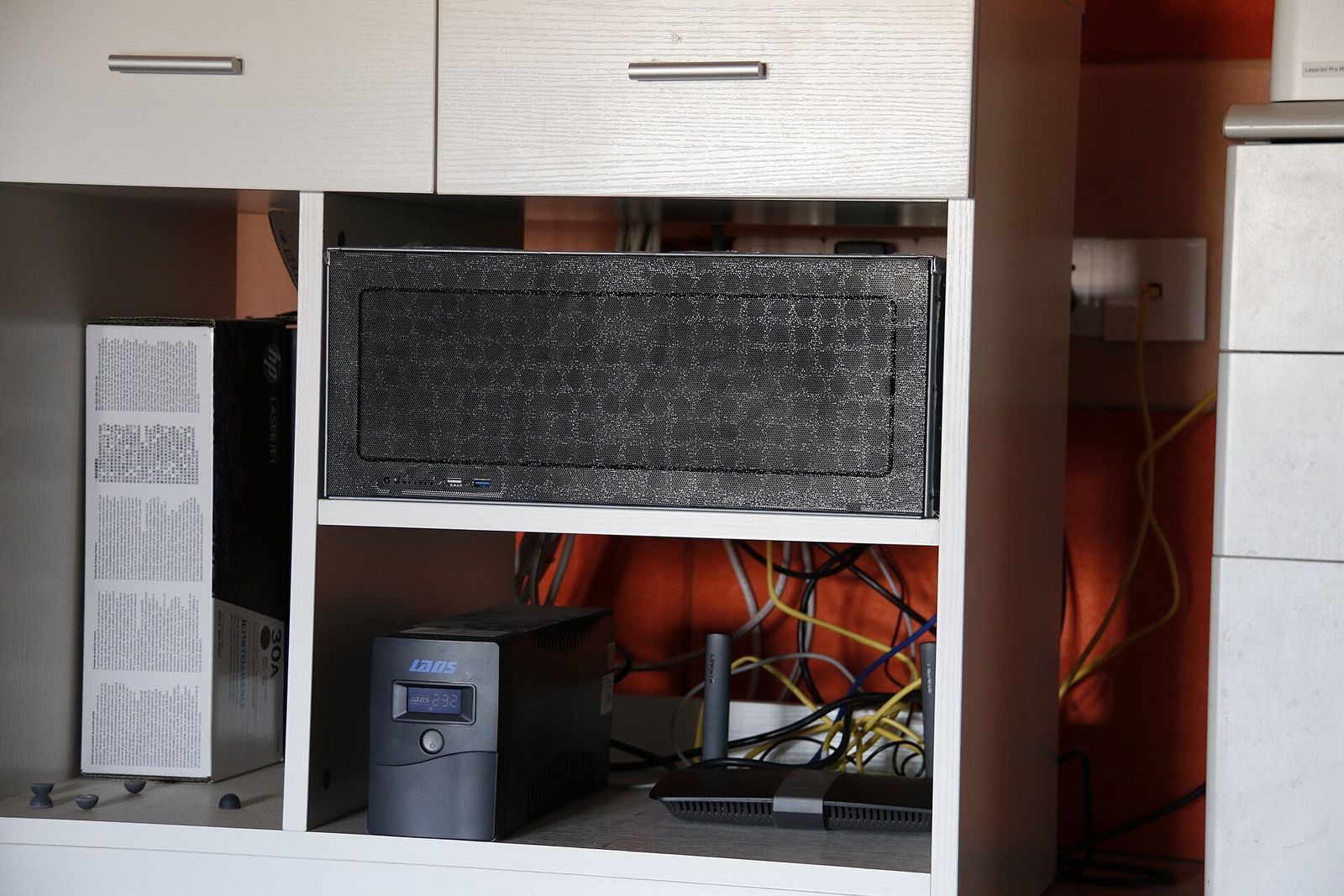
A network-attached storage device, or NAS, is a small, quiet computer full of hard drives that sits beside your router and makes its files available to every device in the house. It can hold the family photo library, back up each computer automatically and stream films to the television. Choosing one means deciding how many drives it should hold, how they're arranged and how the whole thing is backed up. This guide covers those decisions in plain terms.
What a NAS does, and whether you need one
A NAS connects to your network by Ethernet and runs its own operating system, managed from a web browser or phone app. Typical uses are:
- Shared storage that every computer, phone and tablet can reach.
- Automatic backups of computers, including through built-in tools such as Time Machine on macOS and File History on Windows.
- A private photo library that backs up phones without a subscription.
- Media streaming to televisions, streaming boxes and speakers.
- Extras such as recording footage from compatible security cameras.
If you only need to back up one laptop, an external drive is simpler and less expensive; our external storage guide covers that. A NAS earns its place when several people or devices share files, or when you want one central library.
How many bays?
Most home NAS units are sold "diskless": you buy the drives separately and slide them into bays.
- One bay: the simplest and least expensive option, but with no protection if the drive fails.
- Two bays: the usual starting point. The two drives can mirror each other, so one can fail without losing data.
- Four bays: more efficient RAID levels, so less of each drive goes to protection, and room to grow. A good choice for large photo and video libraries.
- Five bays or more: for enthusiasts, video editors and very large libraries.
It's usually easier to buy a spare bay or two now than to migrate everything to a bigger unit later.
RAID basics
RAID combines several drives so that the NAS can survive a drive failure, or go faster, or both. The common levels are:
| RAID level | Minimum drives | Usable capacity | Survives |
|---|---|---|---|
| RAID 0 | 2 | All drives combined | Nothing: one failure loses everything |
| RAID 1 (mirror) | 2 | One drive | One drive failure |
| RAID 5 | 3 | All drives minus one | One drive failure |
| RAID 6 | 4 | All drives minus two | Two drive failures |
| RAID 10 | 4 | Half the drives | One failure in each mirrored pair |
As examples, two 8 TB drives in RAID 1 give 8 TB of usable space. Four 8 TB drives give about 24 TB in RAID 5 and 16 TB in RAID 6 or RAID 10. The NAS will show a little less, partly because operating systems count capacity in binary units and partly because the system reserves some space.
Some things to know:
- Mixed sizes. In standard RAID, every drive counts as the size of the smallest one. Several NAS makers offer their own flexible RAID modes that make better use of mixed sizes and let you expand by swapping in larger drives.
- Rebuilds. When a drive fails, you replace it and the NAS rebuilds the array. With large drives, this can take many hours or even days, during which the remaining drives work hard. This is why RAID 6 is often preferred for larger arrays.
- File systems. Some NAS systems use file systems such as Btrfs or ZFS, which add snapshots (point-in-time copies you can roll back to) and checksums that detect silent data corruption.
Rule of thumb: RAID is not a backup. It keeps the NAS running when a drive dies. It does nothing about deleted files, ransomware, theft, fire or a failure of the NAS itself.
Backing up the NAS itself
A NAS often ends up holding the only copy of a family's photos, which makes its own backup essential. The widely used 3-2-1 rule applies: three copies of important data, on two types of storage, with one copy off-site.
Practical ways to get there:
- An external USB drive plugged into the NAS, with a scheduled backup job. Unplug it between backups, or rotate two drives, so that ransomware or a power surge can't reach it.
- A cloud backup service, with the data encrypted before it leaves the NAS. Most NAS systems include an app for this.
- A second NAS at a relative's or friend's home, syncing over the internet.
- Snapshots and versioning, where available, so that you can recover files that were deleted or encrypted by mistake or by malware.
Test a restore now and then. A backup you've never restored from is only a hope.
Choosing drives
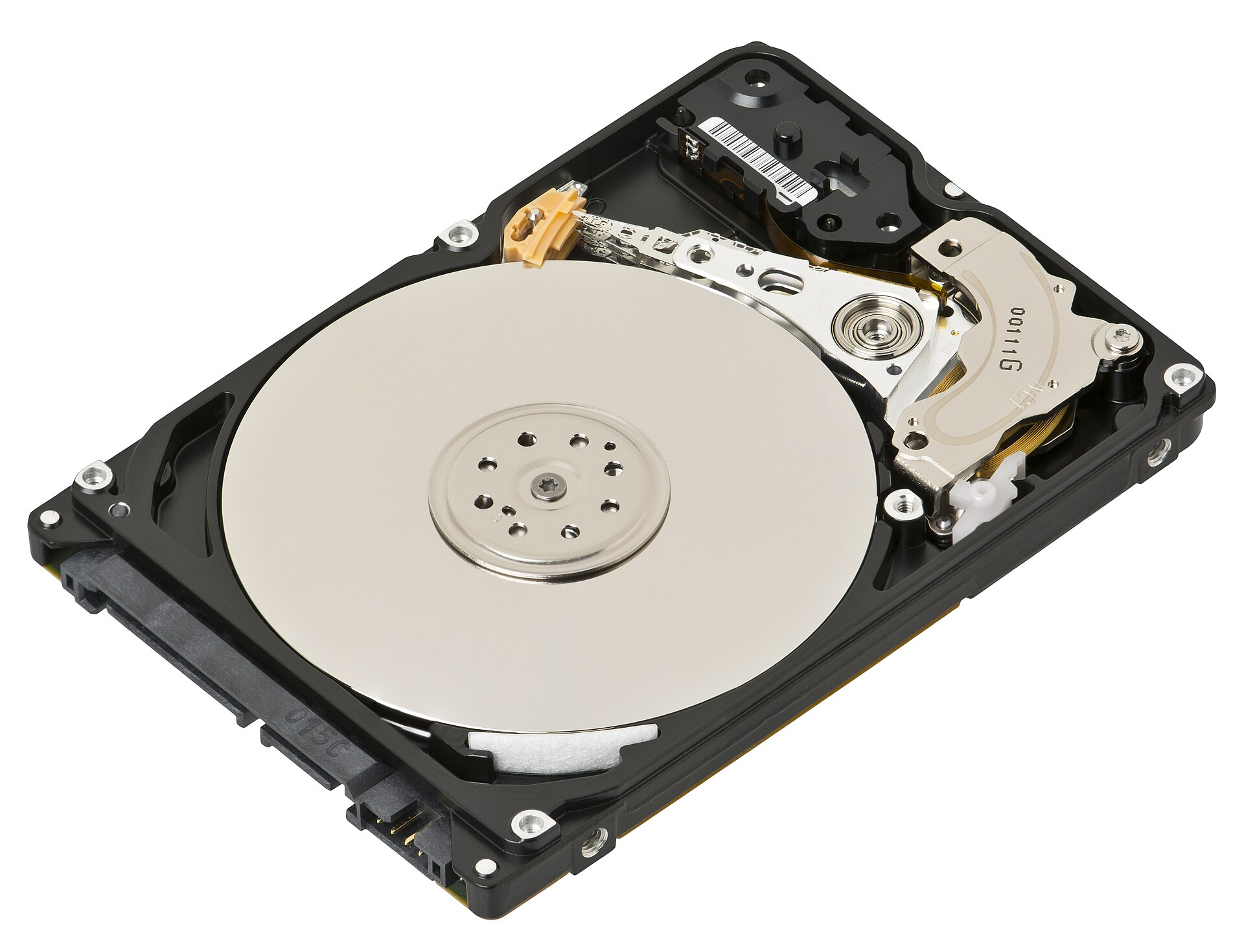
- NAS-rated hard drives are designed to run around the clock and to cope with the vibration of neighbouring drives. They're the standard choice.
- CMR, not SMR. Hard drives record data using either conventional (CMR) or shingled (SMR) methods. SMR drives can be very slow during sustained writing, which makes RAID rebuilds painful. For a NAS, choose CMR drives; the drive's specification sheet says which it is.
- SSDs are silent and fast but cost more per terabyte. Some NAS units have M.2 slots for SSDs used as a cache or as a separate fast volume.
- Compatibility. Check the NAS maker's list of supported drives before buying.
Processor, memory and network speed
For plain file storage and backups, even entry-level hardware is enough. More power matters if you want to convert video on the fly, run many apps at once, or use containers and virtual machines. Look for an Intel or AMD processor and memory that can be upgraded if that's your plan.
The network port often sets the speed limit:
- Gigabit Ethernet tops out at roughly 110 MB/s, which is fine for backups and streaming.
- 2.5 Gigabit Ethernet allows roughly 280 MB/s, useful for moving large files often.
- 10 Gigabit Ethernet is for video editing straight from the NAS.
Faster ports only help if your router or switch and your computer support the same speed. Devices on Wi-Fi are limited by the wireless link, so a NAS benefits from a strong home network; see our guides to mesh Wi-Fi and Wi-Fi 7 routers. Always connect the NAS itself by cable.
Streaming media from a NAS
With media server software such as Plex or Jellyfin, a NAS can present your films, music and photos in a tidy library on your television. Two terms matter:
- Direct play: the NAS simply sends the file, and the playback device decodes it. This takes almost no processing power, so any NAS can do it.
- Transcoding: the NAS converts the video as it plays, because the device can't handle the format, or the connection is too slow for the full-quality file. This is demanding, particularly with 4K video. Smooth transcoding generally needs a processor with built-in graphics that the media software can use for hardware acceleration.
The simplest route is to avoid transcoding: use a capable streaming device that can play your files directly. Watching away from home is limited by your home internet upload speed.
Security and remote access
A NAS exposed to the internet is a target, and NAS units have repeatedly been hit by ransomware campaigns. Sensible precautions:
- Keep the system and apps updated, with automatic updates switched on.
- Use a strong, unique password and two-factor authentication, and disable the default administrator account.
- Don't forward ports from your router to the NAS's management page. For remote access, use a VPN or the maker's relay service.
- Switch off services you don't use.
Noise, power and placement
A NAS runs all day, so small things add up. Hard drives hum and click, so a hallway cupboard or office is a better home than a bedroom, as long as there's ventilation. A typical two- or four-bay unit draws a few tens of watts while active and less when the drives sleep.
A small uninterruptible power supply (UPS) is worth considering. A sudden power cut during writing can corrupt data, and most NAS units can talk to a UPS over USB and shut themselves down cleanly.
The short version
- Two bays in RAID 1 suit most homes; four bays if your library is large or growing.
- Work out usable capacity after RAID, and leave room to grow.
- Buy NAS-rated CMR drives from the compatibility list.
- RAID is not a backup: add an external drive, a cloud backup or both.
- For streaming, favour direct play; buy a more powerful NAS only if you need transcoding.
- Keep it updated, behind your router, and reach it remotely through a VPN.
- Connect by Ethernet, and consider a UPS.
Bloiq is reader-supported. Some links may earn us a commission; it never affects what we write. How we make money.
Cover photo: Tomskyhaha, CC BY-SA 4.0, via Wikimedia Commons