Mesh Wi-Fi and Wi-Fi 6, 6E and 7: what your home actually needs
How Wi-Fi standards, frequency bands and mesh backhaul affect real-world speed, and how to size a network for your home and internet plan.
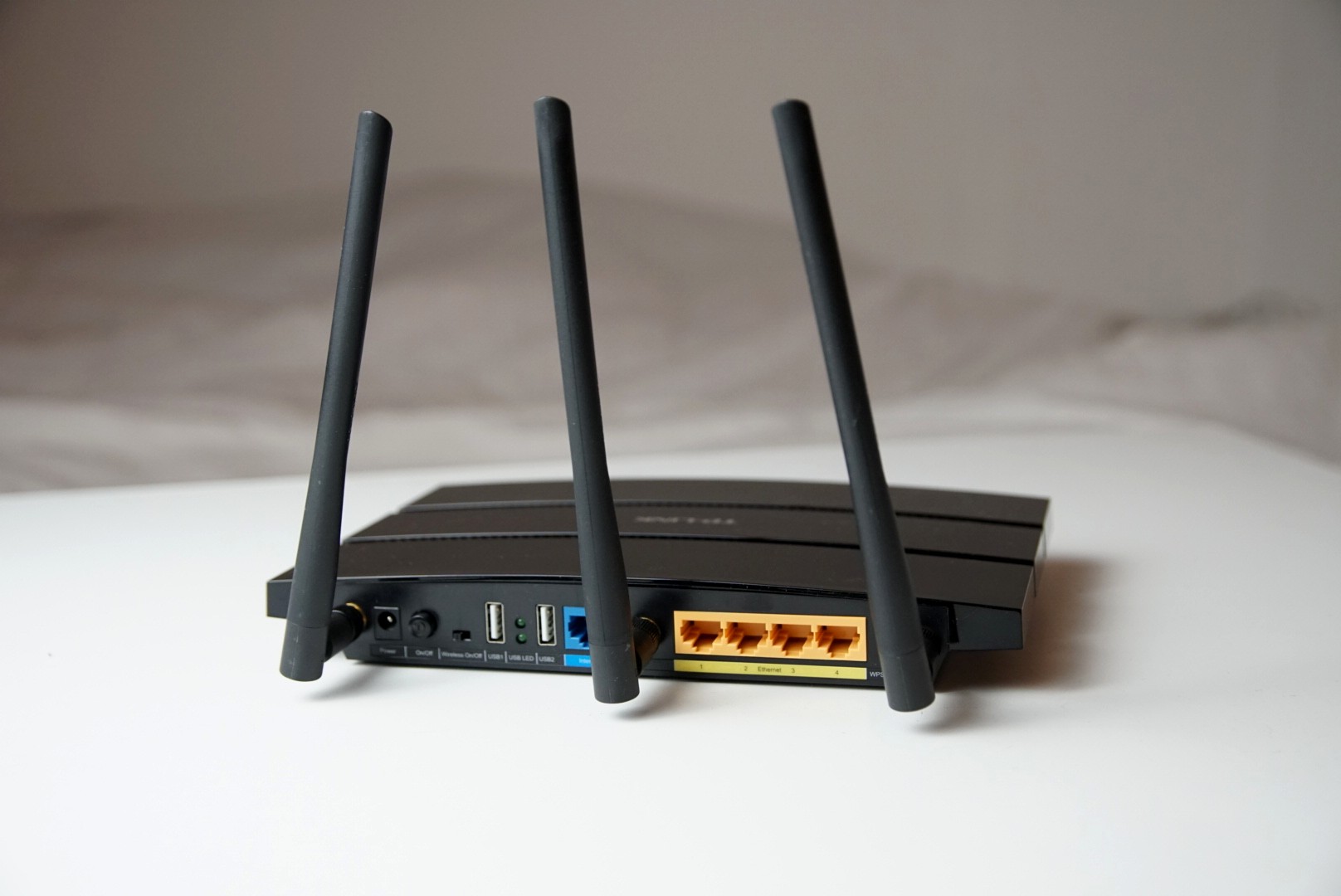
Slow Wi-Fi in the back bedroom is one of the most common household tech complaints, and the market's answer is usually a bigger number: Wi-Fi 7, tri-band, quad-band, speeds quoted in gigabits. Most of those figures are theoretical maximums that no home will ever see. What decides your real experience is the size and construction of your home, where the access points sit, how they connect to each other and what your internet plan delivers. This guide explains the standards and the mesh jargon so you can buy what your home needs, and no more.
Start with your internet plan
Your Wi-Fi cannot make the internet connection faster than your plan. If you pay for 300 Mbps, a router capable of several gigabits will still deliver about 300 Mbps from the internet. Faster Wi-Fi mainly helps with:
- Multi-gigabit plans, where older Wi-Fi becomes the bottleneck.
- Many devices at once, such as several video streams and video calls.
- Local traffic, like backing up to a network drive or streaming from a home media server.
Before you buy anything, run a speed test on a computer plugged into the router with an Ethernet cable. That tells you what the connection itself provides. Then test over Wi-Fi in the rooms that feel slow. If both are slow, the problem is the plan or the ISP's equipment; if only Wi-Fi is slow, better Wi-Fi will help.
Wi-Fi 6, 6E and 7 in plain terms
| Standard | Bands | What it adds | Who benefits |
|---|---|---|---|
| Wi-Fi 6 (802.11ax) | 2.4 and 5 GHz | Better efficiency with many devices, longer battery life for phones and smart devices | Almost every home; the sensible baseline |
| Wi-Fi 6E | Adds 6 GHz | A wide, uncrowded band with more channels | Crowded apartment buildings, fast plans, newer devices |
| Wi-Fi 7 (802.11be) | 2.4, 5 and 6 GHz | Wider 320 MHz channels on 6 GHz, Multi-Link Operation (using several bands at once), higher peak speeds | Multi-gigabit plans, heavy local transfers, future-proofing |
Two catches apply to every new standard:
- Your devices must support it. A Wi-Fi 7 router talks to a Wi-Fi 5 laptop at Wi-Fi 5 speeds. Check what your main phones, laptops and TVs support.
- Availability of the 6 GHz band varies by country. Canada and the United States opened the full band, while the UK and EU opened a smaller portion, which leaves fewer channels, especially of the widest kind. Check what applies where you live.
For most homes with plans under about 1 Gbps, a good Wi-Fi 6 system is plenty. Wi-Fi 6E or 7 makes more sense if you live in a dense building with lots of competing networks, have a multi-gigabit plan, or want equipment that will stay current for many years.
What the bands mean for coverage
- 2.4 GHz travels furthest and passes through walls best, but it is the slowest and most crowded. Many smart-home devices use only this band.
- 5 GHz is much faster, with shorter range. It carries most everyday traffic.
- 6 GHz is fast and uncongested but has the shortest range and is blocked more by walls and floors. It works best in the same room as the access point or one room away.
Building materials matter as much as distance. Concrete, brick, stone, metal, mirrors, foil-backed insulation and old lath-and-plaster walls with metal mesh all weaken signals. Coverage claims in square metres or square feet assume open, easy layouts, so treat them as optimistic.
When a single router is enough
A well-placed single router often covers a flat or a compact single-storey home. Before buying a mesh system, try:
- Moving the router to a central, raised, open spot, not in a cupboard, behind the TV or at one end of the house.
- Updating its firmware.
- Checking whether the ISP's router is simply old; a modern Wi-Fi 6 router may be all you need.
Mesh makes sense for larger homes, multiple storeys, long narrow layouts, thick walls, or outbuildings you want to cover.
How mesh works, and why backhaul matters
A mesh system uses two or more nodes that create one network name, and your devices move between them as you walk around. The key question is how the nodes talk to each other, called the backhaul.
- Wireless backhaul: nodes relay traffic over Wi-Fi. On a basic dual-band system, the same radios carry both your devices' traffic and the backhaul, so speed drops with each hop.
- Dedicated wireless backhaul: tri-band and quad-band systems reserve one band, often 5 GHz or 6 GHz, for node-to-node traffic. This is noticeably better than shared backhaul.
- Wired backhaul: nodes connect over Ethernet. This is the best option by far: full speed at every node, lower latency and no lost airtime. If your home has Ethernet in the walls, choose a system that supports wired backhaul.
Where there's no Ethernet, MoCA adapters can run a network over existing TV coaxial cable, and powerline adapters use electrical wiring, although powerline speeds vary a lot from home to home.
Rule of thumb: wire the backhaul if you possibly can. A modest mesh system with Ethernet between nodes usually outperforms a premium system relaying over the air.
Placing mesh nodes
- Put the main node where the internet connection enters, connected to the modem or fibre box.
- Place wireless satellites partway between the main node and the dead zone, roughly one or two rooms away, not in the dead zone itself. A satellite needs a strong signal to relay.
- Keep nodes in the open and off the floor, away from large metal objects, fish tanks and microwaves.
- For multi-storey homes, a node on each floor, roughly stacked, usually works well.
- Use the system's app to check the signal strength between nodes, and move them if it reports a weak link.
Features worth checking
- Ethernet ports on each node for wired backhaul, TVs and consoles. If your plan is faster than 1 Gbps, look for 2.5 GbE ports or faster.
- WPA3 security support. It is required on the 6 GHz band.
- Guest network and parental controls. Some systems put advanced security or parental features behind a paid subscription; check before buying.
- Firmware updates delivered regularly and automatically.
- Bridge or access-point mode, so the mesh can work behind your ISP's gateway without creating a "double NAT" problem. Alternatively, put the ISP's gateway in bridge mode.
- Compatibility. Nodes from different brands generally don't mix. The Wi-Fi EasyMesh standard aims to change that, but support is patchy, so plan to stay within one system.
The short version
Test your wired speed first, and don't pay for Wi-Fi far beyond your plan. For most homes, a good Wi-Fi 6 router or mesh system is enough; choose 6E or 7 for multi-gigabit plans, crowded buildings or long-term use, provided your devices support it. Use a single well-placed router for small homes, mesh for large or awkward ones, and wired backhaul wherever you can run a cable.
Bloiq is reader-supported. Some links may earn us a commission; it never affects what we write. How we make money.
Cover photo: Pictures of things, CC BY-SA 4.0, via Wikimedia Commons