Hardware security keys and passkeys: FIDO2, USB-C, NFC and backups
How FIDO2 security keys and passkeys stop phishing, which connector and features to choose, and how to set up a backup key so you never get locked out.
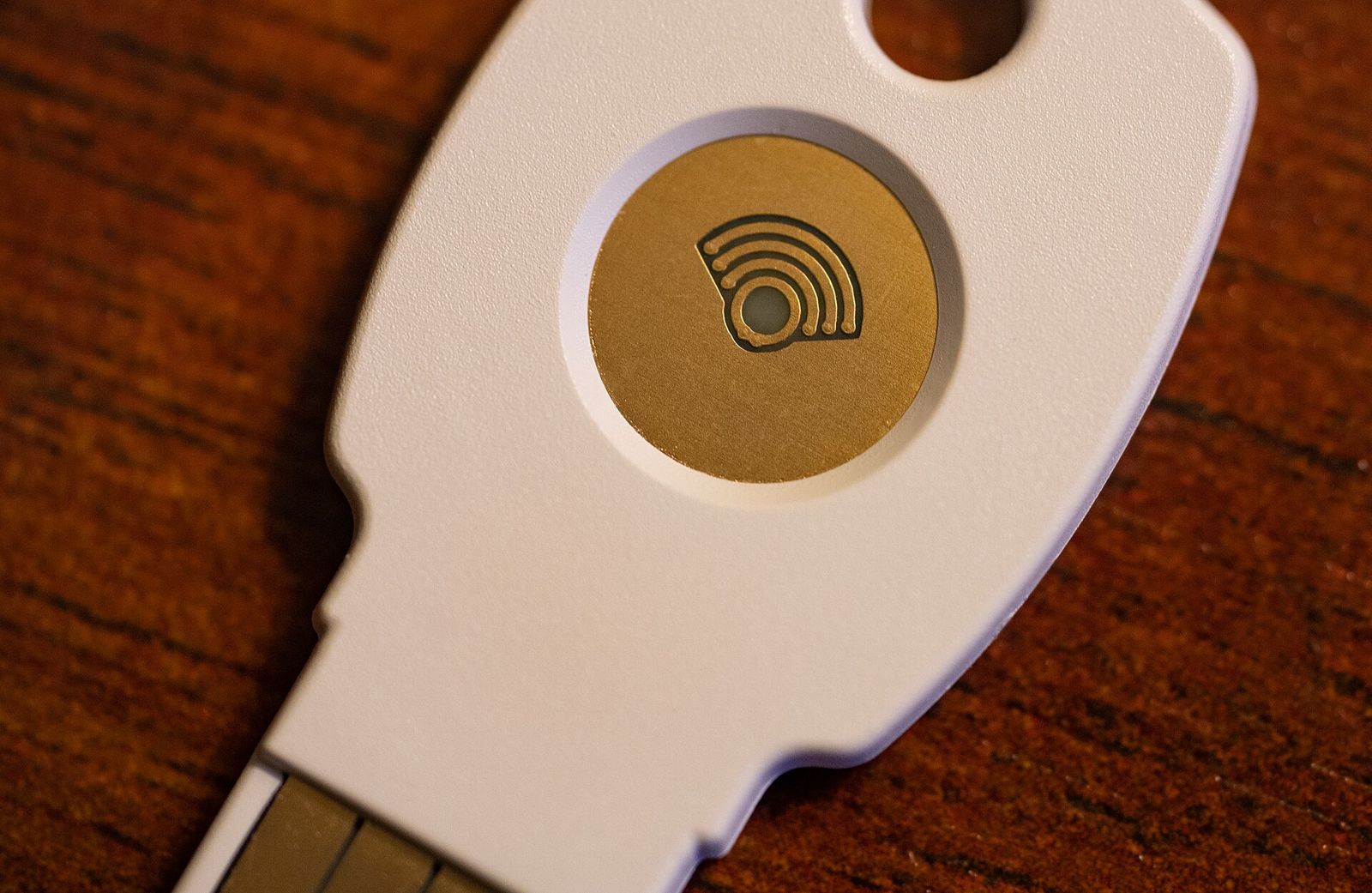
Passwords get guessed, reused and phished, and even text-message codes can be intercepted or typed into a fake site. Hardware security keys and passkeys fix the weakest part of signing in: they prove who you are with cryptography that only works on the real website. This guide explains how they work, how passkeys relate to physical keys, which connectors and features to look for, and how to set things up so a lost key never locks you out.
How security keys stop phishing
A hardware security key is a small device, usually the size of a house key, that stores private cryptographic keys that never leave it. When you register it with an account, the key creates a new key pair just for that site and gives the site only the public half. When you sign in, the site sends a challenge, you touch the key, and it signs the challenge.
The important detail is that the signature is tied to the website's address. A look-alike phishing site on a different domain simply gets nothing useful, even if you are fooled. That is why security keys are described as phishing-resistant, something one-time codes from an app or text message are not.
They also don't need batteries, network access or a phone signal for USB and NFC use, and there is nothing to copy off the device.
FIDO U2F, FIDO2, WebAuthn and passkeys
The labels on the box describe generations of the same open standards, developed by the FIDO Alliance and the W3C:
- FIDO U2F: the original standard, for using a key as a second factor after your password.
- FIDO2: the current standard. It combines WebAuthn (how websites and browsers talk to authenticators) and CTAP (how a browser talks to a key over USB, NFC or Bluetooth). It allows passwordless sign-in as well as second-factor use.
- Passkeys: the consumer name for FIDO2 sign-in credentials that replace a password entirely.
Passkeys come in two kinds:
| Synced passkeys | Device-bound passkeys | |
|---|---|---|
| Stored in | Your phone's or computer's password manager | A hardware security key (or one device) |
| Backed up | Automatically, across your devices in the same ecosystem | No; you register a second key yourself |
| Convenience | Very high, unlock with face, fingerprint or device PIN | Need the key with you |
| Best for | Most everyday accounts | Email, password manager, admin and high-value accounts |
Both are phishing-resistant. A hardware key adds a physical object that can't be reached by someone who takes over your phone or cloud account, which is why many people use synced passkeys for everyday accounts and keys for the few accounts that protect everything else.
Choosing a connector: USB-C, USB-A, NFC
Pick the connector for the devices you actually sign in on:
- USB-C: current laptops, most Android phones, recent iPhones and tablets.
- USB-A: older laptops and desktop computers. Adapters work but are easy to lose.
- NFC: tap the key against the back of a phone. Very convenient for phones without a spare port or with a case.
- Lightning: a few keys exist for older iPhones and iPads.
- Bluetooth: once common, now rare; it needs charging and is less widely supported.
A key with USB-C and NFC covers most modern setups. If you still use an older desktop, a USB-A and NFC key alongside a USB-C one is a practical pair.
Rule of thumb: choose the connector for the devices you sign in on most, and make sure every key you rely on works with your phone.
Features worth understanding
Beyond the connector, keys differ in a few ways:
- PIN or fingerprint (user verification). FIDO2 keys can require a PIN, set on the key itself, before they sign in. Some keys have a built-in fingerprint sensor instead. For passwordless sign-in, the PIN or fingerprint is what stops someone who finds your key from using it. Too many wrong PIN attempts locks the key, and resetting it erases everything on it.
- Passkey storage. Device-bound passkeys take up space on the key, and each key holds a limited number, which varies by model. Second-factor registrations usually don't use this space. If you plan to store many passkeys on a key, check the capacity.
- Extra protocols. Some keys also support one-time passwords, smart-card (PIV) login for computers, or OpenPGP for email signing and SSH. Useful for IT work; unnecessary for most home users.
- Certification. Look for FIDO2 certification. Some organisations require keys with FIPS 140 validation; check what your employer or agency specifies.
- Build. Water and crush resistance, a keyring hole and a low-profile "nano" design that stays in a laptop port are all matters of preference.
- Firmware. Many keys can't have their firmware updated, as a security choice. If a flaw is ever found, the remedy is replacing the key.
Setting up your first key
- Start with your most important account, usually your main email, since it can reset everything else. Then your password manager, phone account, cloud storage and banking where supported.
- In the account's security settings, look for "security key", "passkey" or "two-step verification" and follow the prompts. Your browser or operating system will ask you to insert or tap the key and set a PIN if one isn't set yet.
- Register a second key immediately (see below).
- Save the account's recovery codes somewhere safe and offline.
- Once keys work, review older sign-in methods. Removing text-message codes improves security, but only after you are sure your keys and recovery options work.
Support varies by service: some accept keys only as a second factor, some allow passwordless passkeys, and a few let you require keys for every sign-in. Check each service's help pages for its current options.
Backups: always register two keys
Because a security key can't be copied, a lost or broken key is only a minor problem if you planned ahead. The standard approach:
- Buy at least two keys and register both with every account.
- Keep one on your keyring for daily use and the other somewhere safe at home, or with someone you trust.
- When you add a new account, remember to register the backup key too. Many people keep a short list of where each key is registered.
- Keep recovery codes for each account, printed or in a secure place separate from the keys.
- Consider a synced passkey on your phone as a further fallback for accounts where that suits you.
If you lose a key, sign in with the backup, remove the lost key from each account, and register a replacement.
Using keys with phones and computers
Modern browsers and operating systems on Windows, macOS, Linux, Android and iOS support FIDO2 keys, though details vary. On phones, NFC is usually the easiest option. Passkeys can also sign you in on a computer using your phone: the computer shows a QR code, you scan it, and the phone confirms you are nearby over Bluetooth. Keep your devices' operating systems and browsers updated, as support for passkeys and keys continues to improve.
The short version
- Security keys and passkeys use FIDO2 and are phishing-resistant; one-time codes are not.
- Choose USB-C plus NFC for most current devices; add USB-A if you use older computers.
- Set a PIN on the key, and check passkey capacity if you plan passwordless sign-in.
- Register two keys with every account, keep one somewhere safe, and store recovery codes offline.
- Start with your email and password manager, then work outwards.
Bloiq is reader-supported. Some links may earn us a commission; it never affects what we write. How we make money.
Cover photo: Tony Webster, CC BY 2.0, via Wikimedia Commons
.jpg)