Portable monitors: USB-C single-cable setups, sizes, brightness and stands
How portable monitors run from one USB-C cable, which size and resolution to choose, what brightness figures mean on the move and which stand designs hold up.
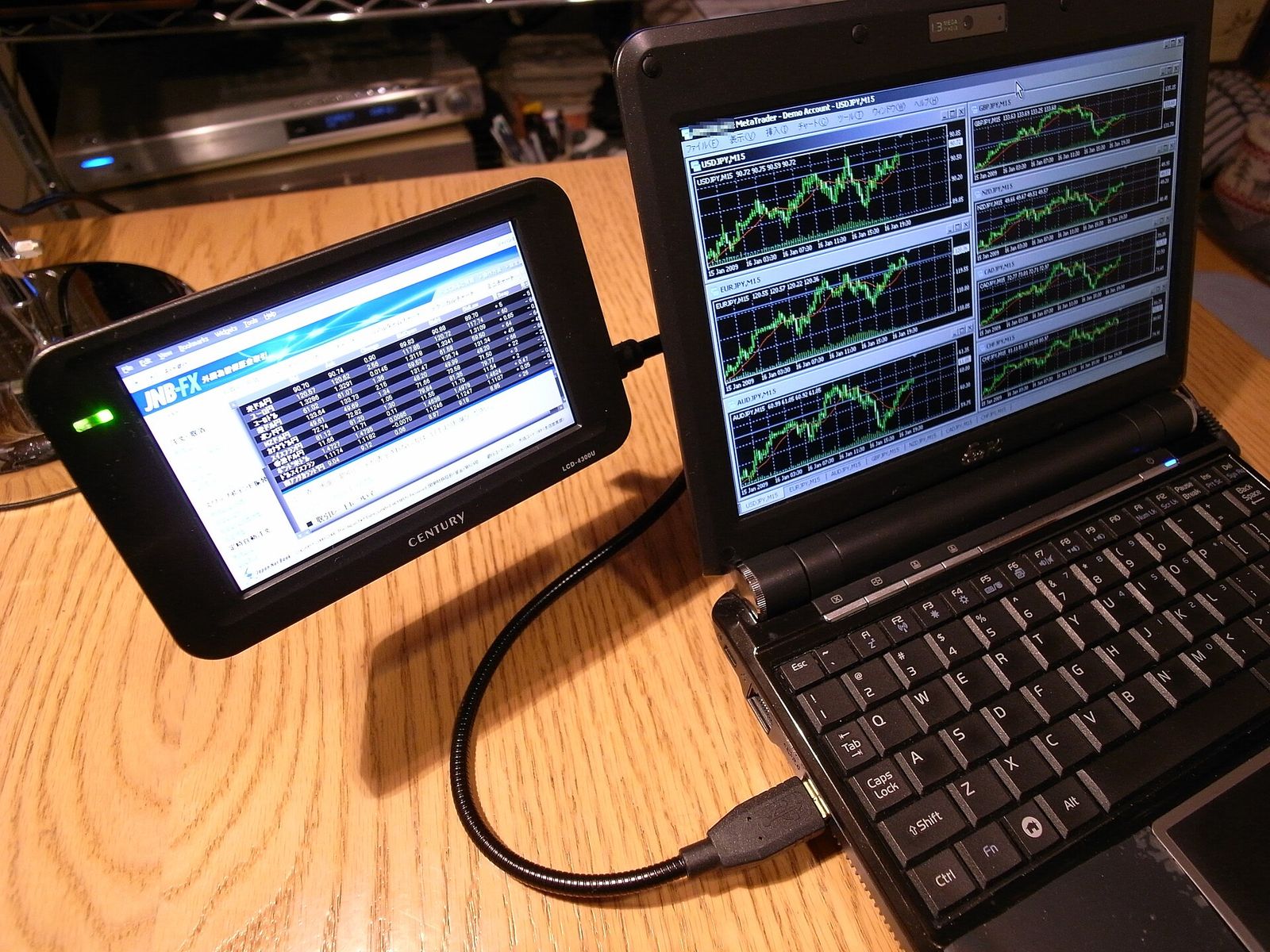
A portable monitor turns a laptop into a two-screen workstation in a hotel room, a café or a shared office, and it slips into the same bag. The catch is that the "one cable" promise depends on your laptop's port as much as on the monitor, and thin, light panels make compromises on brightness and stands. This guide explains how the connection works, which size suits you and what to check before you buy.
How a single USB-C cable does everything
On the best setups, one USB-C cable carries the picture, powers the monitor and, on touch models, sends touch input back to the laptop. Three things have to line up:
- The laptop's port must output video. This uses DisplayPort Alternate Mode over USB-C. Thunderbolt and USB4 ports always support it; ordinary USB-C ports may or may not. Look for a small DisplayPort or Thunderbolt symbol next to the port, or check the laptop's specifications.
- The port must supply enough power. A portable monitor typically draws somewhere around 5–15 W, more at full brightness. Many laptop ports manage that, but some supply less, especially on battery. A short power supply shows up as a monitor that dims, flickers, disconnects or won't turn on.
- The cable must carry video. Many USB-C cables are charging-only or USB 2.0 and carry no video at all. Use the cable supplied with the monitor, or a full-featured USB 3.x, USB4 or Thunderbolt cable. Short cables are the most reliable.
Rule of thumb: one cable is enough only if your laptop's USB-C port supports video output (DisplayPort Alt Mode, Thunderbolt or USB4) and can supply enough power. If it can't power the screen, plug a charger into the monitor's second USB-C port.
Most portable monitors have two USB-C ports for this reason. With a charger in the second port, the monitor powers itself, and many models pass the remaining power through to charge the laptop. Check that pass-through wattage against your laptop's own charger rating; our guide to USB-C chargers explains how power is negotiated.
Other ways to connect
- Mini HDMI or HDMI: for laptops without video over USB-C, older PCs, game consoles and cameras. HDMI carries no power, so the monitor also needs a USB-C power supply.
- DisplayLink over USB-A: some monitors use a driver to send compressed video over an ordinary USB data connection. This works with almost any laptop and can add screens beyond a laptop's built-in limit, but it needs software installed, uses some processor power, isn't ideal for fast games and may not show some copy-protected video.
- Phones and tablets: many recent tablets and some phones with USB-C, including recent iPhones and Android models with a desktop mode, can send video to a portable monitor. Check your model's specifications.
Also check how many external displays your laptop supports: some, including models with entry-level chips, drive only one.
Choosing a size and resolution
What makes text look sharp is pixel density, in pixels per inch (PPI). The common combinations:
| Size | Common resolutions | Pixel density | Best for |
|---|---|---|---|
| 13.3–14 in | 1920 × 1080 or 1920 × 1200 | About 155–170 PPI | The lightest bags; pairing with 13–14 in laptops |
| 15.6–16 in | 1920 × 1080; 2560 × 1600 | About 141; about 189 PPI | The mainstream choice; matches most laptops |
| 17.3–18.5 in | 1920 × 1080; 2560 × 1600 | About 119–127; about 163–175 PPI | A desk-style second screen that still packs flat |
A few practical points:
- Match your laptop. A screen of similar size and aspect ratio sits neatly alongside it. Many newer laptops use a taller 16:10 shape, and a 16:10 monitor lines windows up better.
- Full HD is fine at 15.6 inches for most work. At 17 inches and above it looks softer, and a higher resolution is worth having.
- Very high resolutions cost power. A 4K panel at 15.6 inches is very sharp, but it draws more power and relies on display scaling to keep text readable, so it shows little extra content.
- Weigh it with its cover or stand. A 15.6-inch screen is often under 1 kg, but a metal kickstand or thick case adds noticeably.
Brightness, panels and screen finish
Brightness is measured in nits (candelas per square metre). Many portable monitors are rated around 250–300 nits, which is fine indoors but looks dim next to a modern laptop screen at 400–500 nits. Look for 400 nits or more if you work by bright windows. Outdoors in daylight, even the brightest portable screens struggle.
- Brightness can drop on laptop power. Some monitors limit brightness when they run from the laptop's port alone and only reach full brightness with a charger connected.
- IPS panels are the norm: accurate colour and wide viewing angles.
- OLED panels give deep blacks, vivid colour and very slim designs, but static toolbars carry some burn-in risk, and some dim by flickering (PWM) in a way that sensitive people notice. Our guide to monitors for work and gaming explains panel types in more detail.
- Colour: for photo or design work, look for close to 100% sRGB coverage. A rating of around 45% NTSC indicates a washed-out panel.
- Finish: matte screens resist reflections in bright rooms; glossy screens look punchier but mirror lights and windows. Touch screens are usually glossy.
- Refresh rate: 60 Hz is standard. Gaming models offer 120–165 Hz, but check that your laptop or console can send that over the connection you'll use.
Stands, covers and mounting
How a portable monitor stands up matters more than most specifications suggest.
- Folding magnetic covers are light and protect the screen in a bag, but they offer only a few angles, usually landscape only, and can slide on smooth tables.
- Built-in kickstands are sturdier, adjust through a wide range of angles and often allow portrait orientation, at the cost of some weight.
- Separate stands and mounts: some monitors have a VESA mount (often 75 × 75 mm) or a tripod thread, so they can go on a monitor arm or a small adjustable stand. Raising the screen towards eye level, together with a laptop stand, is far better for your neck.
- Laptop-mounted extenders clip to the back of the laptop lid and slide out one or two screens. They're tidy, but they add weight to the lid and hinge, fit only a range of lid sizes and can make a laptop tip backwards. Check compatibility carefully.
Windows and macOS can rotate the picture for portrait use, and some monitors rotate it automatically.
Touch, sound and other extras
- Touch works over USB-C, or over HDMI with an extra USB connection. Windows supports touch screens; macOS doesn't support touch input natively.
- Speakers are small and quiet. Use the laptop's speakers or headphones.
- Controls: a small scroll wheel is easier to use than tiny buttons for brightness and input menus.
- Protection: a padded sleeve prevents pressure marks when the screen travels in a full bag.
Power on the move
A portable monitor running from a laptop takes a noticeable share of its battery, so lower the brightness when you're unplugged. A USB-C power bank can run the monitor through its second port; check that its output in watts covers the monitor. Our guide to power banks explains capacity and output. At a desk, a multi-port charger can run the laptop and monitor together.
The short version
- Confirm your laptop's USB-C port supports video output (DisplayPort Alt Mode, Thunderbolt or USB4).
- Use a full-featured cable, and plan on a charger in the monitor's second port if the laptop's port is weak.
- 15.6–16 inches suits most people; choose 2560 × 1600 at 16 inches or larger for sharper text.
- Look for 400 nits or more for bright rooms, and a matte finish if reflections bother you.
- Prefer a kickstand or VESA mount if you'll use it daily; a folding cover is lighter for occasional trips.
- Choosing the laptop too? See how to choose a laptop.
Bloiq is reader-supported. Some links may earn us a commission; it never affects what we write. How we make money.
Cover photo: Masahiko OHKUBO, CC BY 2.0, via Wikimedia Commons