USB-C hubs and docks: Thunderbolt, USB4, displays and power pass-through
How USB-C hubs differ from docking stations, what Thunderbolt and USB4 add, why external monitor support varies, and how power pass-through really works.
Thin laptops have traded rows of ports for two or three USB-C sockets, and a hub or docking station is how most people get back their monitors, keyboards, network cable and card reader. But two adapters that look alike can behave very differently: one runs two 4K monitors smoothly, the other drives a single screen at a jerky 30 Hz. The difference lies in what the laptop's port supports and what the hub does with it. This guide explains the standards, the display question and power pass-through, so you can pick something that works with your laptop.
Hub or docking station
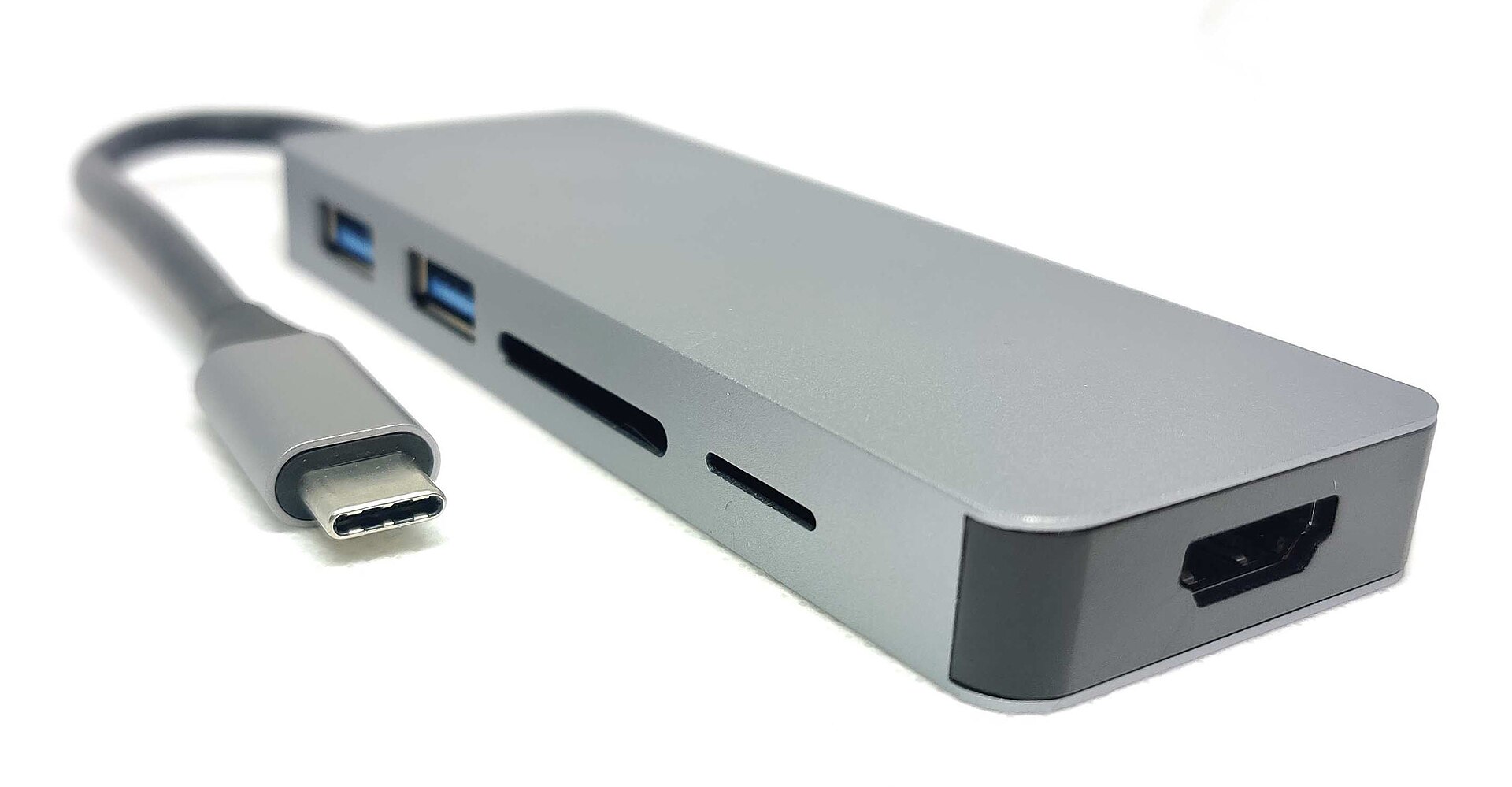
Hubs are small, usually powered by the laptop, and connect with a short built-in cable. They are made for travel and light desk use: a couple of USB-A ports, an HDMI output, perhaps a card reader and a USB-C socket for your charger.
Docking stations sit on the desk and have their own power supply. They typically offer more ports, more display outputs, wired Ethernet, audio and enough power to charge the laptop through the same cable. One cable connects the laptop to everything on the desk.
| Hub | Docking station | |
|---|---|---|
| Power | From the laptop, or your charger passed through | Own mains power supply |
| Displays | Usually one, sometimes two | Often two or more |
| Charging the laptop | Passes through your charger's power, minus a share | Supplies power itself |
| Best for | Travel, occasional desk use | A permanent desk setup |
USB-C is a connector, not a speed
USB-C describes the shape of the plug. What runs through it depends on the port:
- USB 2.0: 480 Mbit/s, common on cheap cables and some phone ports.
- USB 3.2 (5, 10 or 20 Gbit/s): fast enough for drives and a monitor.
- USB4: 20 or 40 Gbit/s, with USB4 Version 2.0 allowing up to 80 Gbit/s.
- Thunderbolt 3 and 4: 40 Gbit/s. Thunderbolt 5: 80 Gbit/s, and more in one direction for high-bandwidth displays.
Thunderbolt and USB4 share the same underlying technology, and most Thunderbolt docks work with USB4 laptops and the reverse. Thunderbolt 4 certification adds guaranteed minimums: support for at least two 4K displays, charging, and the ability to wake the computer from sleep. A USB4 port's capabilities are left more to the laptop maker, so check its specification.
On the laptop, look for the symbols next to each port: a lightning bolt for Thunderbolt, a D-shaped DisplayPort logo for video, and sometimes a number such as 40 for USB4 speed. If ports aren't marked, the laptop's specification sheet says which ones support video and charging. Our laptop guide covers ports when choosing a new machine.
How external displays work
There are three ways a hub or dock can drive a monitor:
- DisplayPort Alternate Mode. The laptop sends a DisplayPort video signal down the USB-C cable. This is how most simple hubs work, and the HDMI port on a hub is usually converted from it. The laptop's port must support it.
- Thunderbolt or USB4 tunnelling. Video travels alongside data, with enough bandwidth for two high-resolution monitors from one cable.
- DisplayLink and similar technologies. The dock contains its own graphics chip and receives compressed video over ordinary USB, using a driver installed on the computer. This adds monitors that the laptop couldn't otherwise drive, but it uses some processor power, suits office work better than gaming, and protected video can be unreliable on some systems.
Points that catch people out:
- Refresh rate. Many inexpensive hubs drive 4K monitors only at 30 Hz, which feels sluggish when moving the mouse. Look for 4K at 60 Hz in the specification.
- Bandwidth sharing. On a simple USB-C connection, video and USB data share the same wires. Some hubs reduce display resolution to keep fast USB ports, or the other way round.
- Multiple monitors. Two outputs on a hub don't guarantee two different pictures. Some hubs mirror the same image on both, and some laptops support only one external display. A technique called MST (Multi-Stream Transport) lets one DisplayPort connection drive several monitors on many Windows laptops, but macOS doesn't use it for extended desktops, so Mac users usually need a Thunderbolt dock or DisplayLink for extra screens.
Rule of thumb: check your laptop's maximum number of external displays first. No hub or dock can exceed it except with DisplayLink.
Our guides to monitors and portable monitors explain resolution, refresh rate and USB-C connections from the monitor side.
Power pass-through
Most hubs have a USB-C socket marked PD for your laptop charger. The charger powers the hub and the laptop through it, but the hub keeps some of the power for itself and its connected devices, often around 10 to 15 W.
- A 100 W charger connected through a hub may deliver something closer to 85 W to the laptop. Check the hub's figure for maximum power to the host.
- Plugging or unplugging the charger can make the hub reset briefly, disconnecting drives and monitors. Eject drives first.
- A docking station supplies power itself, typically between 60 and 100 W, and some more. Match or exceed your laptop's original charger wattage.
Our guide to USB-C chargers and GaN explains how USB Power Delivery and charging cables work.
The other ports
- USB-A and USB-C data ports. Check their speed (5 or 10 Gbit/s versus 480 Mbit/s) and remember they share the hub's single link to the laptop. Several fast drives at once will slow each other down. Our external storage guide explains drive speeds.
- Ethernet. Gigabit is common; 2.5 gigabit appears on newer docks. A wired connection makes video calls steadier at a desk. See our guide to Ethernet cables.
- Card readers. Most hubs read SD and microSD at UHS-I speeds; photographers with UHS-II cards may want a dedicated reader. Our SD card guide explains the difference.
- Audio. A headphone and microphone socket on a dock saves reaching for the laptop.
Practical details
- Cable length. Fast Thunderbolt and USB4 cables are limited in length, especially passive ones. Docks usually come with a suitable cable; using a long or low-quality replacement can cause dropouts.
- Heat. Compact hubs get warm under load. Leave them on an open surface, not under papers or on a bed.
- Firmware and drivers. Docks sometimes receive firmware updates that fix display and charging problems. DisplayLink docks need their driver installed.
- Phones and tablets. Many tablets and some phones support hubs and external displays, but often with limits. Check the device's own documentation.
The short version
- Hub for travel; dock for a permanent desk with one cable.
- Check what your laptop's port supports: Thunderbolt, USB4, DisplayPort Alt Mode and charging.
- Look for 4K at 60 Hz, and check your laptop's maximum number of external displays.
- Mac users wanting several screens: a Thunderbolt dock or DisplayLink.
- On a hub, expect the laptop to get less power than your charger supplies.
- Ports on a hub share one link, so busy drives slow each other down.
Bloiq is reader-supported. Some links may earn us a commission; it never affects what we write. How we make money.
Cover photo: Khalid Bencherifa, CC BY-SA 4.0, via Wikimedia Commons