External storage: SSD vs HDD, USB and Thunderbolt speeds, and backups
When a portable SSD beats a hard drive, what USB 3.2, USB4 and Thunderbolt speeds mean in practice, and how to set up backups that actually protect your files.
An external drive is the simplest way to add space to a laptop, move large files between computers or keep a backup of your photos and documents. But the choice between a portable SSD and a hard drive, and the maze of USB version names, make it easy to pay for speed you can't use, or to buy a fast drive and connect it through a slow port. This guide explains the drive types, what the connection standards deliver in real use, and how to turn a drive into a proper backup.
SSD or hard drive?
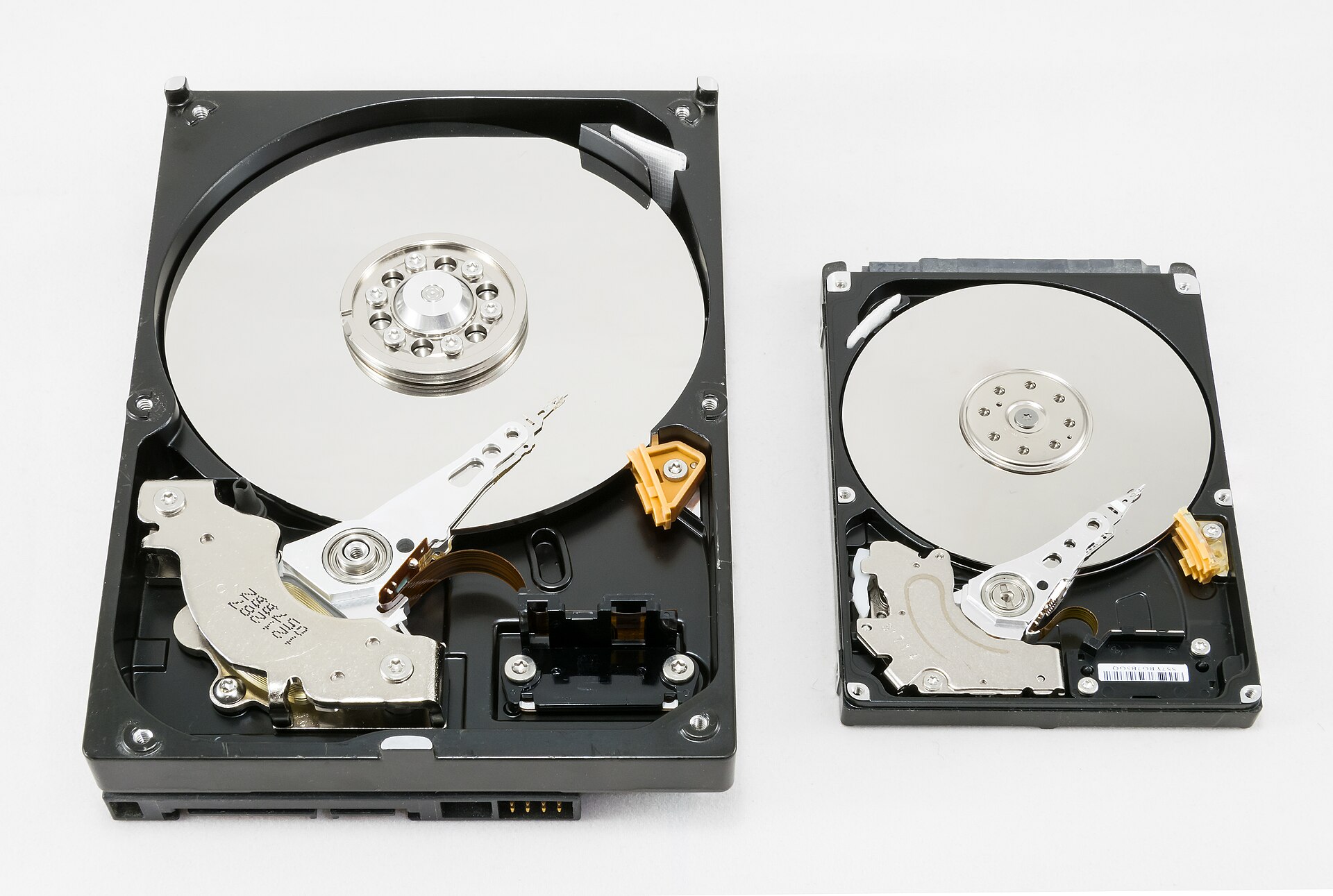
Hard disk drives (HDDs) store data on spinning magnetic platters read by a moving head. Solid-state drives (SSDs) store it on flash memory chips with no moving parts.
| External HDD | Portable SSD | |
|---|---|---|
| Typical real speed | Roughly 100–250 MB/s | Roughly 400 MB/s to over 3,000 MB/s, depending on connection |
| Cost per terabyte | Low | Higher |
| Largest capacities | Very large, especially desktop drives | Smaller, but growing |
| Shock resistance | Sensitive to knocks, especially while running | Much more robust |
| Size and noise | Bulkier; audible spin and clicks | Pocket-sized; silent |
In short:
- Choose an HDD for large, inexpensive backup and archive storage that mostly sits on a desk.
- Choose an SSD for speed, travel, editing photos and video directly from the drive, or anything that gets carried around.
Portable hard drives (2.5-inch) run from the USB port alone. Desktop hard drives (3.5-inch) offer larger capacities but need a mains power adapter.
The USB naming problem
USB version names have been renamed several times, so the same speed can appear under different labels. The speed in gigabits per second is the figure to look for.
| Speed | Names you may see | Realistic transfer speed |
|---|---|---|
| 5 Gbit/s | USB 3.0, USB 3.1 Gen 1, USB 3.2 Gen 1, "USB 5Gbps" | Up to about 450 MB/s |
| 10 Gbit/s | USB 3.1 Gen 2, USB 3.2 Gen 2, "USB 10Gbps" | Up to about 1,000 MB/s |
| 20 Gbit/s | USB 3.2 Gen 2x2, "USB 20Gbps" | Up to about 2,000 MB/s |
| 40 Gbit/s | USB4, Thunderbolt 3 and 4 | Up to roughly 2,800–3,800 MB/s with NVMe SSDs |
| 80 Gbit/s | USB4 Version 2.0, Thunderbolt 5 | Higher still, with suitable drives |
Some points to know:
- Bits and bytes. 1 byte is 8 bits, and some bandwidth is lost to overhead, so a 10 Gbit/s link delivers around 1,000 megabytes per second at best, not 10,000.
- USB 3.2 Gen 2x2 (20 Gbit/s) is not supported by many computers, including Macs. A 20 Gbit/s drive on an unsupported port will usually fall back to 10 Gbit/s.
- Thunderbolt and USB4 are the fastest options but need a compatible port on the computer, and drives cost more.
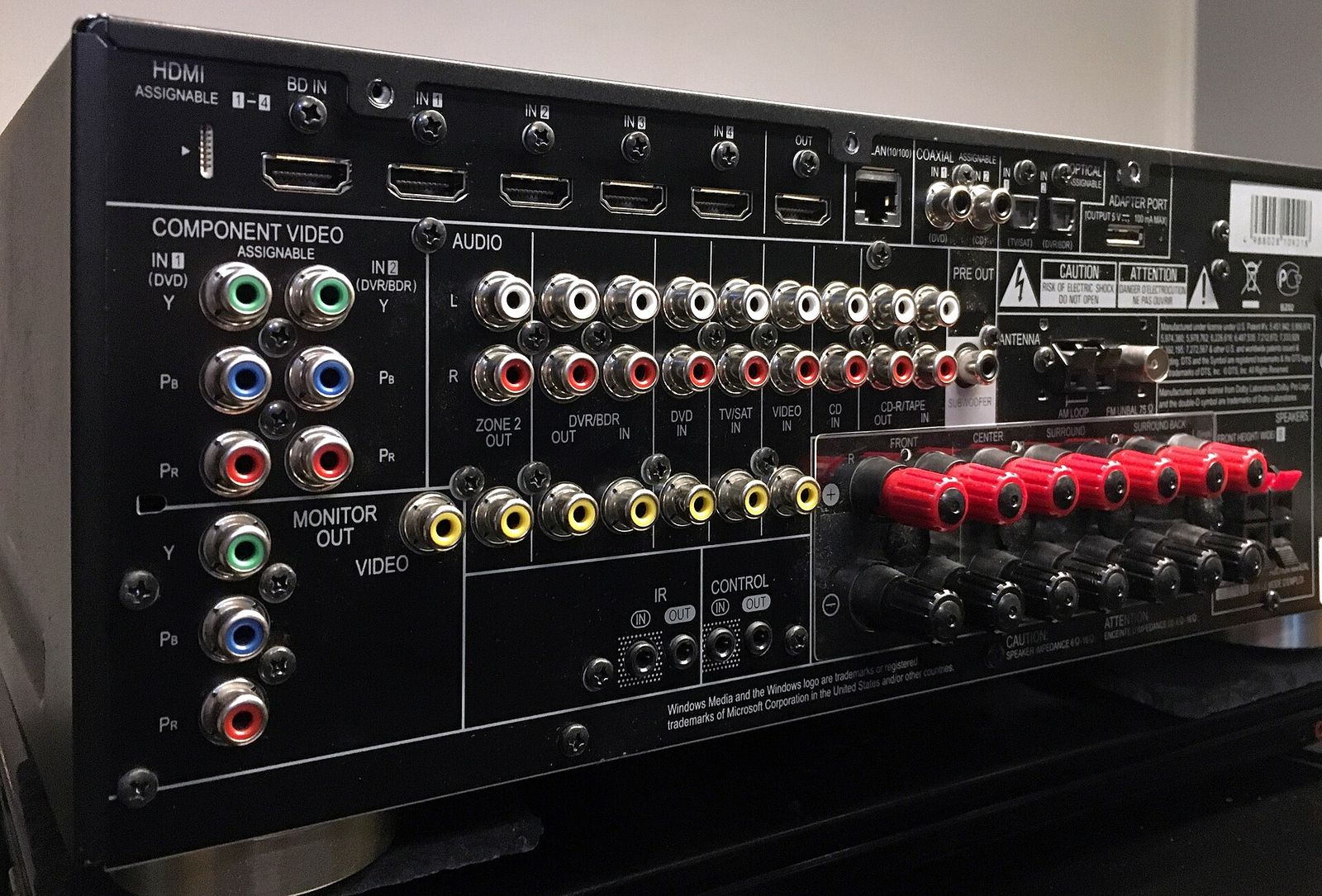
- A USB-C connector says nothing about speed on its own. A USB-C port can be anything from USB 2.0 to Thunderbolt 5.
Rule of thumb: a drive runs at the speed of the slowest link in the chain: the computer's port, the cable, the drive's enclosure and the drive itself.
Cables matter too
Use the cable that came with the drive, or one rated for the same speed. Many USB-C cables sold for charging support only USB 2.0 data (about 40 MB/s in practice), which would cripple a fast SSD. Longer cables are more likely to be limited, and 40 Gbit/s cables are usually short or clearly marked.
Speeds on the box vs speeds in real use
Quoted speeds are sequential figures for large files under ideal conditions. Real-world use can be slower:
- Many small files, such as a photo library or a folder of documents, copy much more slowly than one large video file.
- Sustained writes can slow down once the SSD's fast cache fills up. Copying hundreds of gigabytes at once may drop to a fraction of the headline speed, especially on budget drives.
- Heat can make small, fast SSDs slow down to protect themselves during long transfers. Metal cases or heatsinks help.
- Hard drives are fastest when the data is at the outer edge of the platter and slow down as they fill.
Capacity and formatting
- Why a 1 TB drive shows less. Drive makers count 1 TB as 1,000,000,000,000 bytes; Windows counts in binary units, so the same drive appears as about 931 GB. Nothing is missing.
- File system. Drives often come formatted as exFAT, which works on both Windows and macOS. NTFS is Windows-native (macOS can read it but not write to it without extra software), and APFS is macOS-native. Reformatting erases the drive, so choose before you copy files.
- Encryption. For a drive that travels, use encryption: built-in tools such as BitLocker To Go on editions of Windows that include it or an encrypted APFS format on macOS, or a drive with hardware encryption. Keep the password safe; lost keys usually mean lost data.
Backups that actually protect you
An external drive with the only copy of your files is storage, not a backup. Drives fail, get dropped, lost or stolen, and ransomware can encrypt any drive left connected.
A widely used approach is the 3-2-1 rule:
- 3 copies of important data (the original plus two backups).
- 2 different types of storage, such as your computer's internal drive and an external drive.
- 1 copy off-site, such as a cloud backup or a drive kept at another address.
Practical steps:
- Use automatic backup software. Both main desktop systems include tools, such as File History on Windows and Time Machine on macOS, which keep older versions of files so you can recover from mistakes.
- Disconnect at least one backup drive when not in use, so ransomware or an electrical fault can't reach it.
- Test restores occasionally by recovering a few files.
- Replace ageing drives. No drive lasts forever. SSDs have a rated write endurance (often given as TBW, terabytes written), and hard drives wear mechanically. SSDs are also not ideal for storage left unpowered for years; connect archive drives periodically and keep a second copy.
For home networks with several computers, a network-attached storage (NAS) device can centralise backups; a fast, stable network helps, as our mesh Wi-Fi guide explains.
Which drive for which job
- Everyday backup of a laptop: a portable HDD or an affordable 10 Gbit/s SSD, used with automatic backup software.
- Large photo and video archives: a desktop HDD, plus an off-site or cloud copy.
- Editing video from the drive: a 10 Gbit/s SSD as a minimum; USB4 or Thunderbolt if your computer supports it.
- Travel: a compact, rugged SSD with encryption.
- Game libraries on consoles: check the console's requirements for external storage, which vary.
The short version
- SSD for speed and portability; HDD for the most capacity per unit of money.
- Look at Gbit/s, not version names, and match drive, port and cable.
- Expect real speeds below the box figures, especially for small files and long transfers.
- Follow the 3-2-1 rule, automate backups and keep one copy disconnected or off-site.
- Buying a new computer too? Our laptop guide explains storage and ports.
Bloiq is reader-supported. Some links may earn us a commission; it never affects what we write. How we make money.
Cover photo: Jacek Halicki, CC BY-SA 4.0, via Wikimedia Commons