Monitors for work and gaming: size, panels, refresh rate and USB-C
How to match monitor size and resolution, compare IPS, VA and OLED panels, choose a refresh rate, and use USB-C or Thunderbolt for one-cable laptop docking.
A good monitor makes a laptop into a proper workstation and a gaming PC into something much more enjoyable, but monitor specifications are full of numbers that are easy to over-value. A 27-inch screen can be sharp or fuzzy depending on its resolution, a fast refresh rate is wasted on spreadsheets, and a USB-C port can mean anything from charging only to a full docking station. This guide explains how to choose size and resolution together, which panel type suits you, and how single-cable docking works.
Size and resolution go together
What makes text look crisp is pixel density, measured in pixels per inch (PPI). The same resolution looks sharper on a smaller screen.
| Size and resolution | Pixel density | Good for |
|---|---|---|
| 24-inch, 1920 × 1080 (Full HD) | About 92 PPI | Budget setups, fast esports gaming |
| 27-inch, 2560 × 1440 (QHD) | About 109 PPI | The all-round sweet spot for work and games |
| 27-inch, 3840 × 2160 (4K) | About 163 PPI | Very sharp text; photo work; Mac users |
| 32-inch, 3840 × 2160 (4K) | About 138 PPI | Large, sharp workspace; films and games |
| 34-inch ultrawide, 3440 × 1440 | About 110 PPI | Wide timelines, spreadsheets, immersive games |
A few practical points:
- Full HD at 27 inches or larger looks noticeably soft for text at desk distance.
- High-density screens rely on display scaling to keep text readable. Windows and macOS both handle this, though some older apps look blurry when scaled.
- Ultrawide (21:9) screens replace two monitors without a bezel in the middle. Curved models help keep the edges at a comfortable angle.
- Higher resolution needs more graphics power in games. A mid-range graphics card that manages high frame rates at 1440p may struggle at 4K.
Panel types
- IPS panels have accurate colour and wide viewing angles, making them the default for work and general use. Contrast is modest, typically around 1,000:1, and dark rooms can reveal a faint glow in the corners.
- VA panels have much higher contrast, often around 3,000:1 or more, so blacks look deeper for films and games. Some show smearing in dark, fast-moving scenes, and viewing angles are narrower.
- TN panels are fast and inexpensive but have poor viewing angles and colour; they are now uncommon.
- OLED monitors (including QD-OLED) offer perfect blacks and near-instant pixel response, excellent for games and films. Static desktop elements such as taskbars carry some burn-in risk over time, and some sub-pixel layouts make small text look slightly fringed. Our TV panel types guide explains burn-in in more detail.
- Mini-LED backlit monitors offer high brightness and strong HDR with local dimming, with some blooming around bright objects.
For colour-sensitive work, look for near-complete sRGB coverage for web and office work, or wide DCI-P3 or Adobe RGB coverage for photo and video, plus factory calibration.
Refresh rate and response time
- 60 Hz is fine for office work.
- 100–120 Hz makes scrolling and moving windows noticeably smoother, a real comfort improvement even for work.
- 144–180 Hz is the mainstream target for gaming.
- 240 Hz and above benefit competitive players with graphics hardware able to deliver those frame rates.
Response time figures (often "1 ms GtG") are measured in ways that flatter the monitor; overly aggressive overdrive settings cause bright or dark trails. Independent measurements are more useful than the box.
Adaptive sync matches the monitor's refresh to the graphics card's frame rate to prevent tearing and stutter. Look for VESA Adaptive-Sync, AMD FreeSync or NVIDIA G-SYNC (or G-SYNC Compatible), matching your graphics hardware. Current consoles use HDMI 2.1 VRR; for console-specific features see our guide to TVs for gaming.
Connections and bandwidth
High resolutions and refresh rates need a lot of bandwidth.
- DisplayPort is the usual choice for PCs. DisplayPort 1.4 with DSC (Display Stream Compression) handles 4K at high refresh rates; DisplayPort 2.1 adds more bandwidth.
- HDMI 2.1 suits consoles and many PCs; older HDMI 2.0 ports limit 4K to 60 Hz.
- Use the cable supplied or a certified one; cheap cables are a common cause of flicker and dropouts at high refresh rates.
HDR on monitors
Many monitors accept HDR signals without the brightness or contrast to show it well. The VESA DisplayHDR certification helps: DisplayHDR 400 is an entry level with limited visible benefit; DisplayHDR 600 and 1000 require local dimming and higher brightness; DisplayHDR True Black tiers are aimed at OLED. For HDR that looks like HDR, look for OLED or Mini-LED.
USB-C and Thunderbolt docking
A monitor with the right USB-C port can connect a laptop with one cable for display, charging, USB accessories and sometimes wired networking.
Rule of thumb: check three things: that the port carries video (DisplayPort Alt Mode), that its Power Delivery wattage meets your laptop's charger rating, and that your laptop's own USB-C port supports video output.
- Video: the USB-C port must support DisplayPort Alt Mode. Some laptops' USB-C ports carry data and charging only.
- Power: monitors typically supply somewhere between about 15 W and 100 W or more. If it supplies less than your laptop's charger, the laptop may charge slowly or drain under heavy load. Our guide to USB-C chargers explains how power is negotiated.
- Hub features: USB-A ports for keyboard and mouse, an Ethernet port, and sometimes a built-in KVM switch that lets one keyboard and mouse control two computers.
- Data speed: at the highest resolutions, some monitors limit their USB ports to slower USB 2.0 speeds to leave bandwidth for video.
- Thunderbolt monitors add higher bandwidth for faster accessories and daisy-chaining a second display.
Multiple monitors: check how many external displays your laptop supports. Some laptops, including some with entry-level chips, can drive only one external screen, and daisy-chaining over DisplayPort MST isn't supported on every computer, notably Macs.
Ergonomics
- Height adjustment matters most: the top of the screen should sit at or slightly below eye level, about an arm's length away.
- Tilt, swivel and pivot help, especially if you share a desk.
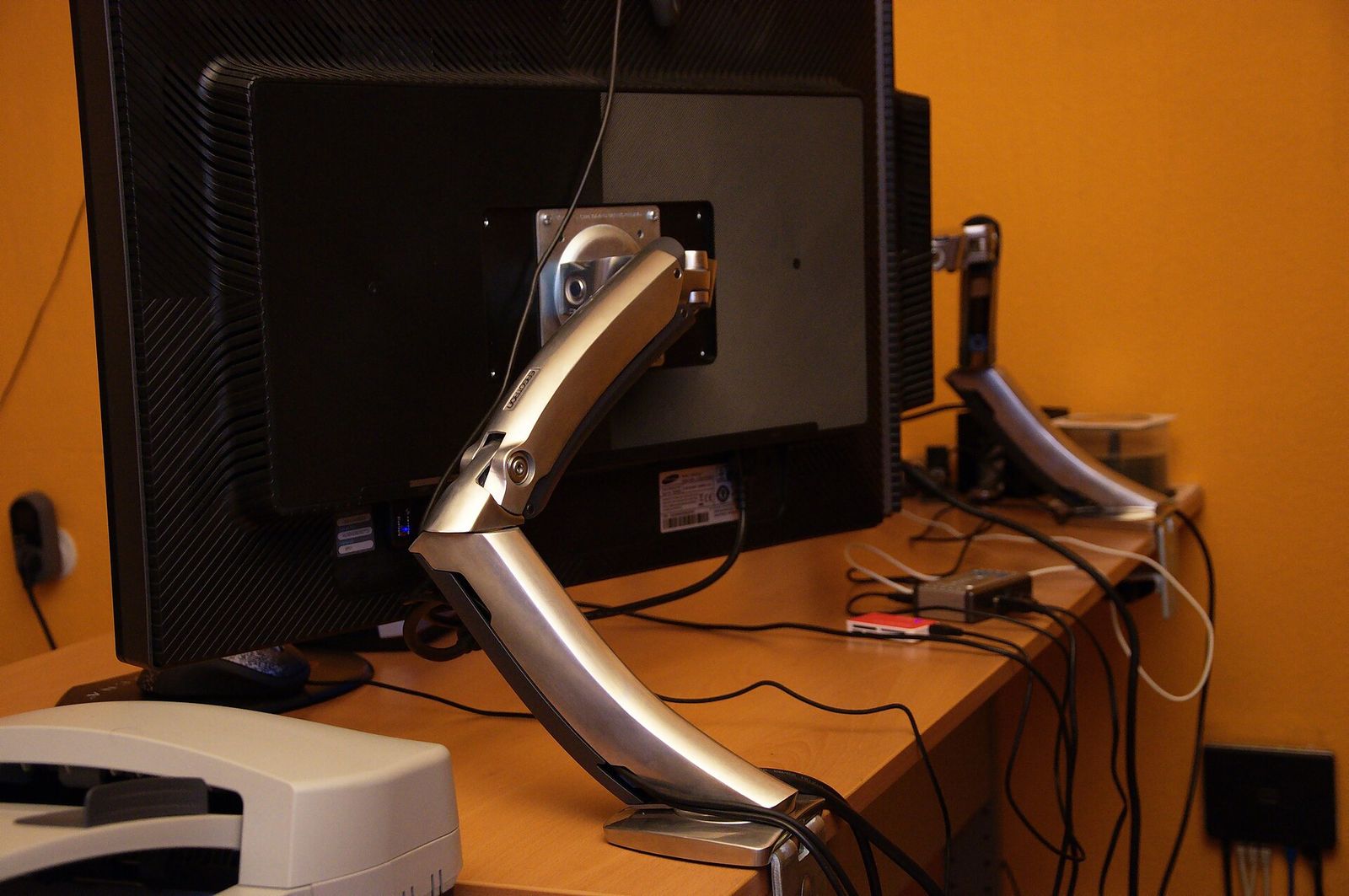
- VESA mounting (often 100 × 100 mm) lets you use a monitor arm and free up desk space.
- Flicker-free backlights and a matte finish reduce eye strain for many people.
- Built-in speakers are usually basic; plan on headphones or separate speakers.
The short version
- 27-inch 1440p is the best all-rounder; 27-inch 4K for sharp text; ultrawide for wide layouts.
- IPS for work and colour, VA for contrast on a budget, OLED for games and films with some burn-in caution.
- 120 Hz helps everyone; gamers should aim for 144 Hz or more with adaptive sync.
- For laptops, check DisplayPort Alt Mode and Power Delivery wattage on the USB-C port.
- Get a stand with height adjustment or use a monitor arm.
- Choosing the computer too? See our guide on how to choose a laptop.
Bloiq is reader-supported. Some links may earn us a commission; it never affects what we write. How we make money.
Cover photo: Ben Scholzen, CC BY 2.0, via Wikimedia Commons
.jpg)