TVs for gaming: HDMI 2.1, 120 Hz, VRR, ALLM and input lag explained
What HDMI 2.1 really guarantees, why 120 Hz and variable refresh rate matter, and how to check input lag and port layout before buying a TV for gaming.
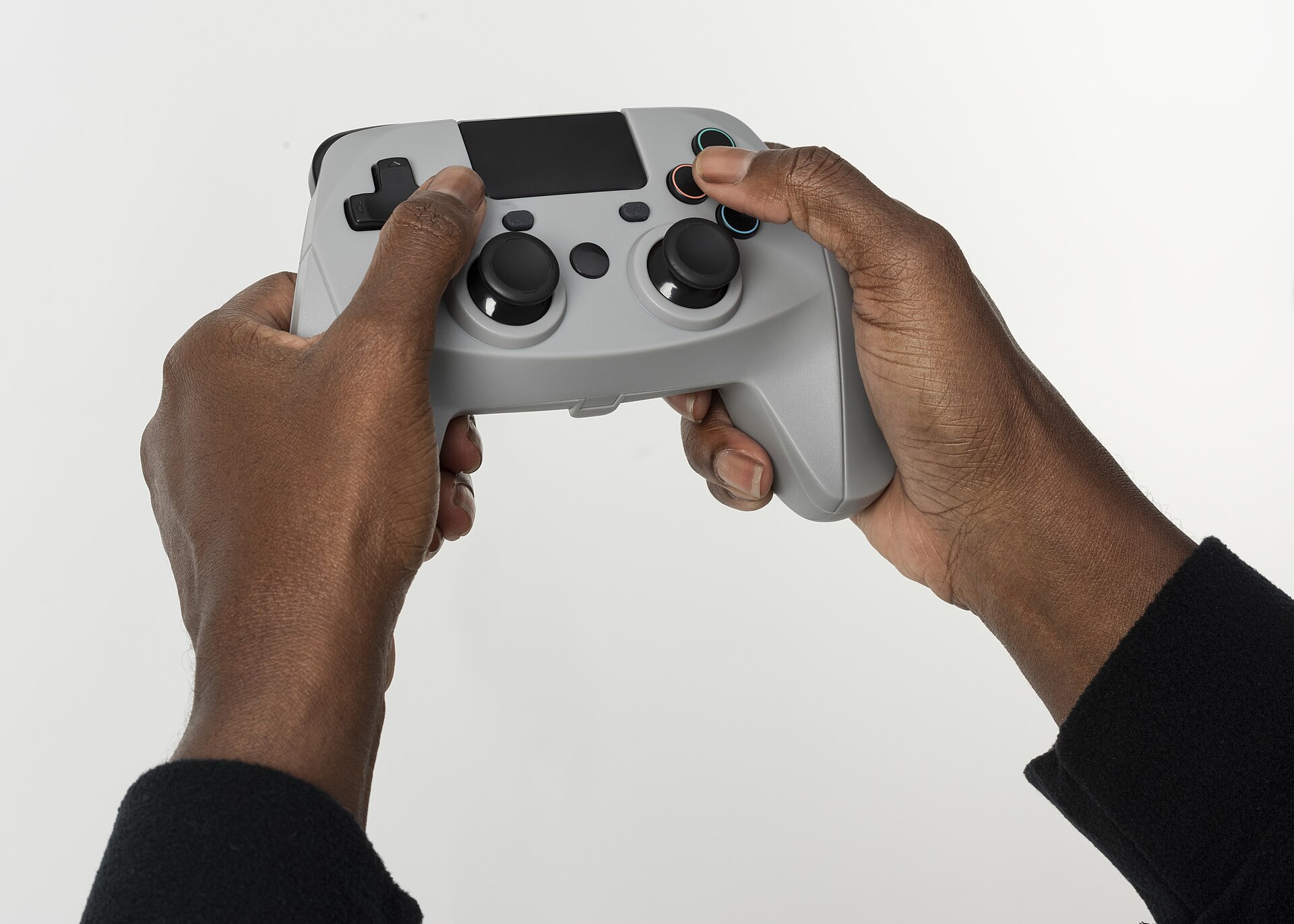
Current consoles and gaming PCs can send a TV far more than a 4K picture at 60 frames per second, but only if the TV can accept it. Gaming TVs are sold with a cluster of acronyms, HDMI 2.1, VRR, ALLM, 120 Hz and more, and a sticker that says "HDMI 2.1" does not guarantee all of them. This guide explains which features make a visible difference, what to check on the specification sheet, and the port-layout details that catch people out.
What HDMI 2.1 does, and what it doesn't guarantee
HDMI 2.1 raised the maximum bandwidth of an HDMI connection to 48 Gbit/s, enough for 4K at 120 Hz with full colour detail, and introduced several gaming features. The catch is that, under the HDMI Licensing Administrator's rules, those features are optional. A TV can describe a port as HDMI 2.1 while supporting only some of them, or while running at lower bandwidth.
So instead of looking for "HDMI 2.1", look for the individual features:
- 4K at 120 Hz (or higher) input.
- VRR (variable refresh rate).
- ALLM (auto low latency mode).
- eARC, if you use a soundbar or receiver.
Also check how many ports support them. Many TVs offer four HDMI ports but full-bandwidth 4K 120 Hz on only two. Some ports run at 40 Gbit/s rather than 48 Gbit/s, which in practice is still enough for 4K 120 Hz with 10-bit colour.
Refresh rate: 120 Hz and beyond
The refresh rate is how many times per second the TV redraws the picture. At 120 Hz, motion looks smoother and the game responds sooner to your controller, because each frame arrives in about 8 milliseconds instead of about 17.
- Many current console games offer a performance mode at 120 frames per second, often at a lower resolution than their 60 Hz mode.
- PC gamers can use higher rates; some TVs accept 144 Hz or more from a computer.
- Native refresh is the figure that counts. Terms such as "motion rate" or "effective refresh rate" often describe processing tricks and can be double the real panel rate. A TV sold as "120 Hz motion" may be a 60 Hz panel.
Rule of thumb: for a TV bought for current consoles or a PC, treat native 120 Hz input at 4K as the minimum, on at least as many HDMI ports as you have gaming devices.
VRR: why variable refresh rate matters
Games rarely hold a perfectly steady frame rate. When the console delivers a frame just before or after the TV is ready, you see either tearing (a horizontal split in the image) or stutter. Variable refresh rate lets the TV wait for each frame and refresh the moment it arrives, so a game running at, say, 50 to 70 frames per second still looks smooth.
There are three common VRR systems:
- HDMI Forum VRR, the version built into the HDMI 2.1 specification and used by consoles.
- AMD FreeSync (with Premium and Premium Pro tiers), used by AMD graphics and some consoles.
- NVIDIA G-SYNC Compatible, a certification for TVs that work well with NVIDIA graphics cards.
Check the VRR range, typically from somewhere around 40 or 48 Hz up to the panel's maximum. When a game drops below the bottom of the range, the benefit disappears unless the source uses low framerate compensation to double frames.
ALLM and game mode
TVs apply image processing, such as motion smoothing and noise reduction, that adds delay. Game mode switches most of it off. ALLM (auto low latency mode) lets a console tell the TV to enter game mode automatically when you start playing and leave it when you switch to a film. It is a convenience feature, but a welcome one if you share the TV.
A related feature, QMS (quick media switching), reduces the blank screen when a source changes frame rate. Support is still patchy.
Input lag and response time
Two numbers get confused:
- Input lag is the delay between a signal arriving at the TV and the image appearing. It is what makes controls feel sluggish. It is measured in milliseconds, and many modern TVs in game mode sit in the low teens or below at 60 Hz, with lower figures at 120 Hz.
- Response time is how quickly pixels change from one shade to another. Slow response causes blur and smearing in motion. OLED pixels switch almost instantly; LCDs vary.
Manufacturers rarely publish input lag, so look for independent measurements made in game mode. For most players, anything under about 20 ms at 60 Hz feels responsive; competitive players will want lower.
HDR in games
Most current games support HDR. Two things help it look right:
- HGiG (from the HDR Gaming Interest Group) is a TV mode that lets the console handle brightness mapping, avoiding the TV and console both adjusting the picture.
- Dolby Vision for gaming is supported by some consoles and TVs. Check the TV lists it specifically for gaming, and whether it adds input lag.
Peak brightness and contrast matter as much for games as for films. Our guide to TV panel types explains the differences between OLED and Mini-LED.
The burn-in question for gamers
Games often have static elements, such as maps, health bars and scores, that stay on screen for hours. OLED TVs include features to reduce burn-in risk, and for players who switch between games it is generally low. If you play one game with a bright, fixed interface for many hours a day, consider an LCD with good local dimming, or check whether the OLED warranty covers burn-in.
Ports, cables and sound
- Cables. For 4K 120 Hz, use a cable certified as Ultra High Speed HDMI. Older "High Speed" cables may cause dropouts or black screens at high bandwidth.
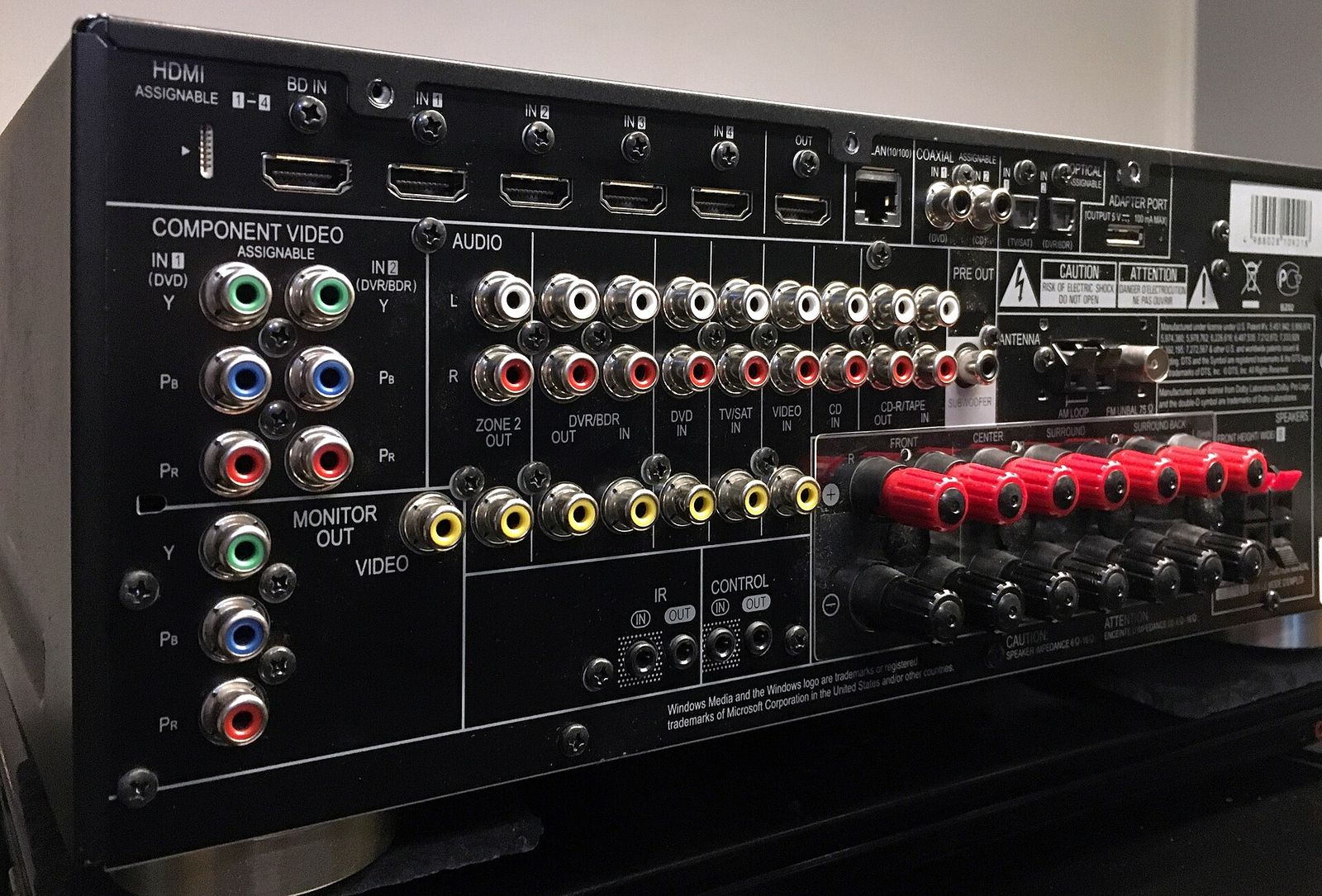
- The eARC port. If you use a soundbar, the eARC port may be one of the full-bandwidth HDMI 2.1 ports. With two consoles and a soundbar, you may run out. Check the port map, or choose a soundbar that doesn't need to occupy a gaming port.
- Passthrough. A soundbar or receiver placed between the console and TV must itself support 4K 120 Hz and VRR, or you will lose those features. Connecting consoles directly to the TV and sending audio back over eARC avoids the problem; our soundbar guide explains eARC.
- PC use. TVs have no DisplayPort input, so a PC needs a graphics card with an HDMI 2.1 output for 4K 120 Hz. For desk use, a monitor for work and gaming is often the better fit.
Size and seating
For consoles played from a sofa, 55 to 65 inches suits most living rooms. Sitting closer increases immersion but makes it harder to take in the whole screen, which matters in fast games. Large screens at close range also make lower-resolution 120 Hz modes look softer.
The short version
- Ignore the "HDMI 2.1" label on its own; check for 4K 120 Hz, VRR and ALLM, and on how many ports.
- Look at native refresh rate, not "motion rate" figures.
- Find independent input lag measurements in game mode.
- Plan your port layout around the eARC port if you use a soundbar.
- Use Ultra High Speed HDMI cables.
- For long sessions of one game with a static interface, weigh burn-in risk when choosing between OLED and LCD.
Bloiq is reader-supported. Some links may earn us a commission; it never affects what we write. How we make money.
.jpg)