Graphics tablets and pen displays: active area, pressure, tilt and screens
How to choose a graphics tablet or pen display: active area, what pressure levels and tilt really do, screen versus screenless, and the setup details that matter.
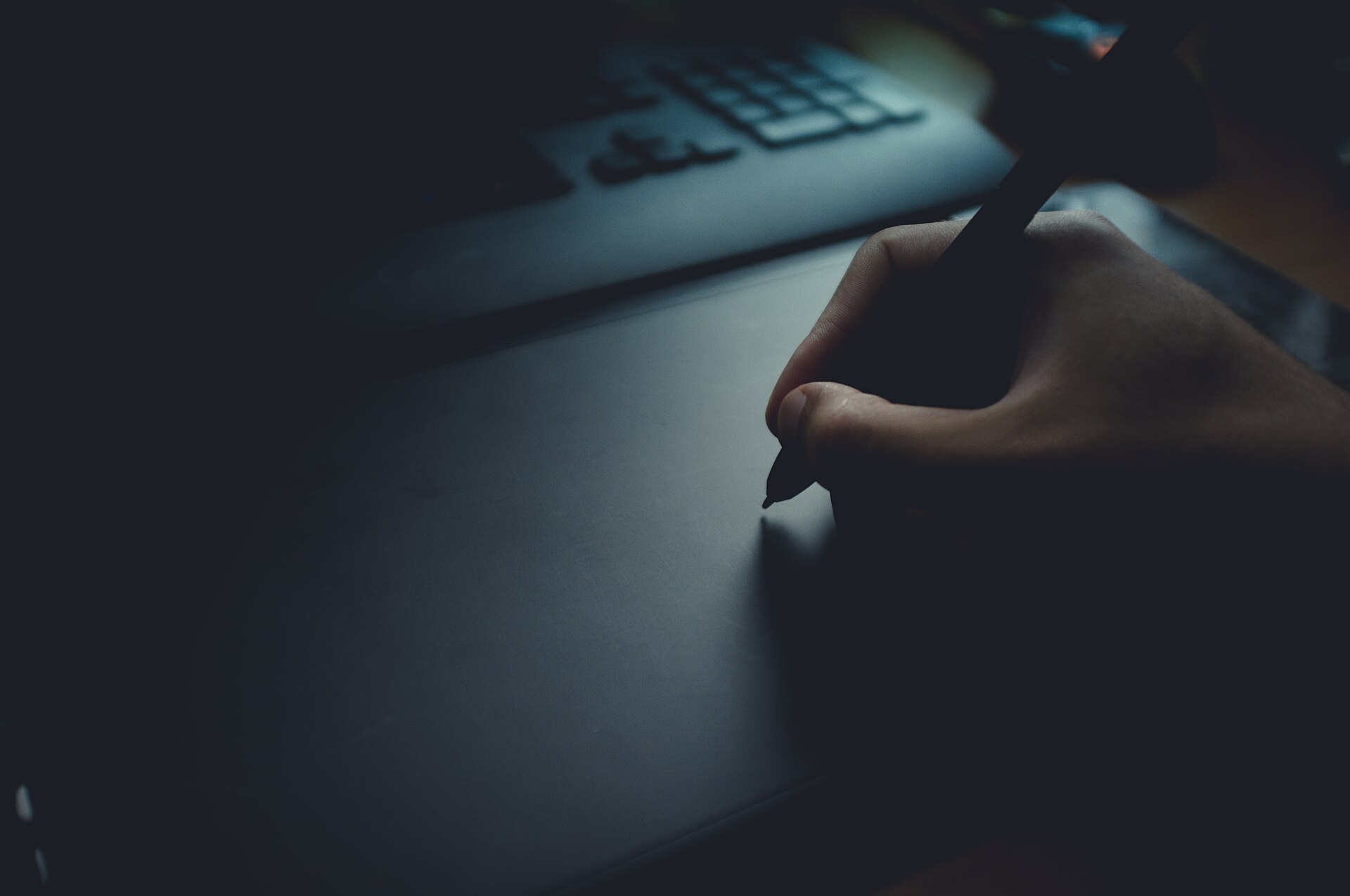
A graphics tablet lets you draw, paint, retouch photos and annotate with a pen instead of a mouse. The choice ranges from a small pad that plugs into a laptop to a large pen display you draw on directly, and the specification sheets are full of big numbers that matter less than they seem. This guide explains what active area, pressure levels, tilt and the other specifications mean, and how to decide between a screenless tablet and a pen display.
Screenless tablet or pen display?
There are three broad types of pen device.
- Screenless graphics tablets (pen tablets) are flat pads. You draw on the pad while watching the computer screen. They're light, durable, inexpensive and comfortable for long sessions, because you look straight ahead at your monitor rather than down at your hand.
- Pen displays have a screen built in, so you draw directly on the image. This feels natural from the first minute, but they're heavier, cost more, need more cables and desk space, and can push you into a hunched posture without a good stand.
- Standalone pen tablets are tablet computers with a pen. They run their own drawing apps and need no computer, but you're limited to the software available for them.
The adjustment period for a screenless tablet is real: drawing in one place while looking at another takes most people days to a few weeks to get used to. After that, many professionals prefer it. If you're unsure, a small screenless tablet is an inexpensive way to find out whether you'll keep using a pen at all.
| Screenless tablet | Pen display | |
|---|---|---|
| Learning curve | Hand–eye adjustment needed | Natural from the start |
| Posture | Head up, looking at the monitor | Looking down unless raised on a stand |
| Hand covers the image | No | Yes |
| Portability | Very good | Fair to poor |
| Cables | Usually one, or wireless | Often several, or one USB-C cable |
| Cost | Lower | Higher |
Active area: how big a tablet you need
The active area is the part of the surface that detects the pen. It's smaller than the tablet's outer size, so compare active areas rather than overall dimensions.
- Small (roughly 15 × 10 cm, about 6 × 4 in): fine for photo retouching, note-taking and casual drawing, especially with a laptop. It encourages drawing from the wrist.
- Medium (roughly 20–25 × 13–16 cm, about 8–10 × 5–6 in): the most versatile size for illustration and design. It allows arm movement without taking over the desk.
- Large (30 cm or more across, 12 in and up): for people who draw with the whole arm and use large or multiple monitors.
The tablet maps its active area to your screen. If the shapes don't match, for example a tablet close to 16:10 with an ultrawide monitor, the driver either stretches movement or leaves part of the tablet unused. Most drivers let you map the tablet to one monitor or part of a screen.
Pressure levels: why bigger numbers don't help much
Pressure sensitivity lets the line get thicker or darker as you press harder. Pens are sold with 2,048, 4,096, 8,192 or 16,384 levels. Beyond a few thousand, few people can feel or see the difference in their strokes.
What matters more:
- Initial activation force (IAF): how lightly you can touch the surface and still make a mark. A low IAF gives fine, delicate lines and soft shading.
- A smooth, consistent pressure curve: no jumps, no "dead" zone in the middle.
- Adjustable pressure curves in the driver and in your drawing software, so you can make the pen feel softer or firmer.
- Low jitter: slow, diagonal lines should stay straight rather than wobble. This varies between pens and is hard to judge from specifications, so read detailed independent reviews.
Tilt, rotation and other pen features
Tilt detection measures the pen's angle, typically up to about 60 degrees from vertical. Drawing apps use it to change the brush shape, which mimics shading with the side of a pencil or angling a calligraphy pen. It's valuable for painters and sketchers, and much less so for photo editing or vector design. Check that your software uses it.
Other pen details:
- Battery-free versus powered pens. Many pens draw power from the tablet through electromagnetic resonance and never need charging. Others have a battery. Battery-free pens are lighter and always ready.
- Side buttons and erasers. Buttons can be assigned to right-click, undo or a tool switch. Some pens have an eraser end.
- Nibs. Nibs wear down, especially on textured surfaces, so check that replacements are easy to buy. Felt or textured nibs add a paper-like drag.
- Grip and weight. A pen that's too thin can cause fatigue on long sessions.
Two numbers you can mostly ignore: resolution in lines per inch (LPI), which is high on almost every modern tablet, and report rate, which only matters if it's unusually low.
What matters on a pen display
If you choose a pen display, its screen becomes as important as the pen.
- Size and resolution. Around 13–16 inches suits a laptop setup; 22–24 inches is a desk commitment. Full HD at small sizes is acceptable; larger screens benefit from QHD or 4K. Our guide to monitors explains these terms.
- Colour. Look for stated coverage of a colour space such as sRGB, and check whether the display can be calibrated if colour accuracy matters to your work.
- Lamination and parallax. A fully laminated display has no air gap between glass and panel, so the line appears right under the nib rather than slightly offset.
- Surface. Etched anti-glare glass reduces reflections and adds a little friction; very glossy glass feels slippery.
- Connection. Some models need a single USB-C cable carrying video, data and power, but only if your computer's port supports video output (DisplayPort Alt Mode). Others use a three-in-one cable with HDMI, USB and a separate power adapter.
- Stand and posture. An adjustable stand lets you raise the screen nearer to an upright position, which is kinder to your neck. Heat from the screen on your hand is a minor comfort factor on some models.
Shortcut keys, touch and wireless
Many tablets have express keys or a touch ring for common commands such as undo, brush size and zoom. A separate keyboard on the other hand does much the same job, so these are useful but not essential. Multi-touch lets you pinch to zoom and rotate the canvas; some people love it, others switch it off to avoid accidental input from the palm. Bluetooth removes the cable on screenless tablets, at the cost of charging.
Compatibility and drivers
A tablet is only as good as its driver software.
- Check support for your operating system, including the version. Linux and ChromeOS support varies by brand.
- Check that your main apps work well with the pen, such as Krita, Clip Studio Paint, Photoshop, Affinity or Blender.
- Look for left-handed setup if you need it: the driver should flip the orientation and the shortcut keys should remain reachable.
- A maker that updates drivers regularly is a safer long-term choice.
The short version
- Screenless for comfort, portability and lower cost; pen display for direct, natural drawing.
- Medium active area suits most people; small for laptops and photo work.
- Pressure levels beyond a few thousand don't matter; low activation force and low jitter do.
- Tilt helps painting and sketching, little else.
- On a pen display, check lamination, colour coverage, the connection and the stand.
- Confirm driver support for your system and software before you buy.
Bloiq is reader-supported. Some links may earn us a commission; it never affects what we write. How we make money.
Cover photo: Glenn Carstens-Peters, CC0, via Wikimedia Commons
.jpg)