Backing up at home: the 3-2-1 rule, external drives, NAS and cloud
How to protect family photos and documents with the 3-2-1 backup rule: what to back up, how external drives, a NAS and cloud backup fit together, and how to test it.
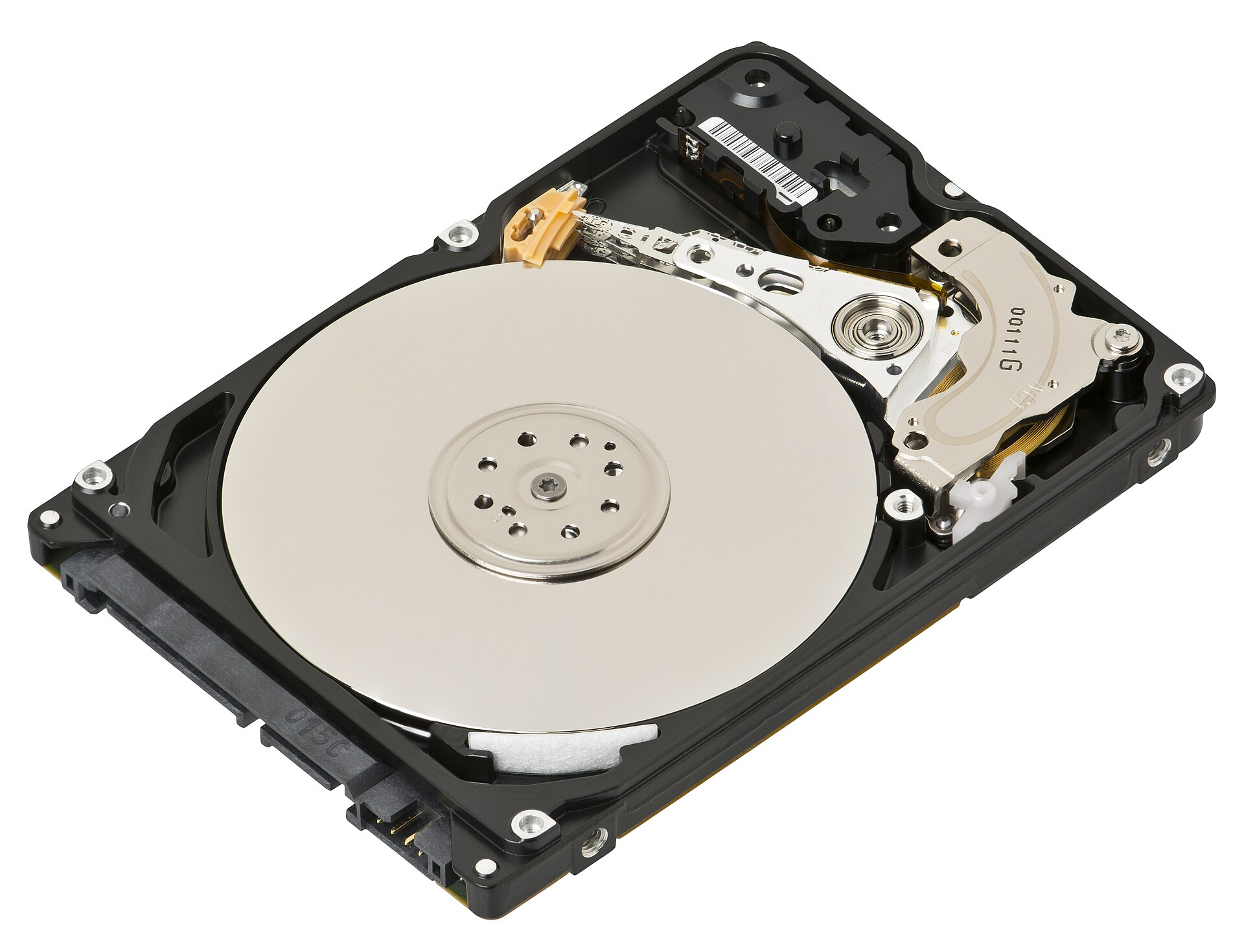
Most people only think about backups after a laptop is stolen, a phone goes into the sea or a drive stops spinning. By then, the photos and documents that existed in one place are gone. A good home backup doesn't need to be complicated or expensive: a sensible plan, a drive or two and some automation cover nearly every disaster. This guide explains the 3-2-1 rule and how to put it into practice with external drives, a NAS and cloud backup.
The 3-2-1 rule
The most widely used guideline for backups is simple:
Rule of thumb: keep 3 copies of anything important, on 2 different types of storage, with 1 copy somewhere else.
In a typical home, that means:
- The original on your computer or phone.
- A local backup on an external drive or a NAS, for fast restores.
- An off-site backup, usually a cloud backup service or a drive kept at another address, for fire, flood and theft.
Some people extend this to 3-2-1-1-0: one copy that's offline or can't be altered, and zero errors when you test a restore. The extra steps are a useful defence against ransomware.
Sync is not backup
Cloud storage that keeps folders in sync across devices is convenient, but it isn't a backup on its own. If you delete a file, overwrite it or ransomware encrypts it, the sync service faithfully copies that change everywhere.
Many sync services keep deleted files and older versions for a limited period, which helps. But a true backup keeps separate, older versions for longer and doesn't reflect your mistakes immediately. The same goes for RAID in a NAS: it protects against a drive failing, not against deleting the wrong folder.
Decide what needs protecting
List what you'd miss before choosing hardware.
- Photos and videos. Usually the largest and most irreplaceable part.
- Documents. Tax records, contracts, scans of passports and certificates, school work.
- Creative projects such as music, design or video files.
- Email and messages, if they're stored only on your device.
- Account data in online services. Many services let you export your data; a periodic export kept with your backups protects against losing access to an account.
- Passwords and two-factor recovery codes. Keep recovery codes somewhere safe and separate, so you can still sign in to your backup service after losing a phone.
Add up the size of everything, then plan for at least twice that capacity, because backups keep older versions and libraries grow.
External drives: the simplest local backup
An external drive plugged into your computer is the easiest first step. Both major desktop systems include backup software: Time Machine on macOS, and Windows' built-in backup tools such as File History. These run automatically and keep hourly or daily versions.
Points to consider:
- Hard drive or SSD. A hard drive gives the most capacity for the money and is fine for backups, where speed matters little. A portable SSD is faster and tougher if you carry it around. Our guide to external storage: SSD vs HDD covers the differences and connection speeds.
- File backup or full image. File backups protect your documents and photos. A system image copies the whole drive, including apps and settings, so you can restore a computer exactly as it was. Many people do both occasionally.
- Disconnect between backups. A drive that's always connected can be encrypted by ransomware along with the computer, or damaged by the same power surge. Plugging it in for scheduled backups is safer.
- Rotate two drives. Keep one at home and one at work or with a relative, and swap them regularly. This gives you an off-site copy without the cloud.
- Encrypt backup drives, especially ones that leave the house, and store the password safely.
A NAS: one backup target for the whole household
When several people and devices need backing up, a network-attached storage device makes sense. Every computer backs up to it over the home network, phones can upload photos to it automatically, and it can hold shared files and media.
A NAS usually uses two or more drives in RAID, so one drive can fail without losing data. But the NAS is still a single box in a single house, so it needs its own backup: an external drive attached to it, a cloud backup or a second NAS elsewhere. Snapshots, where supported, add a strong layer of protection against ransomware and accidental deletion. Our NAS guide explains drive bays, RAID levels and security settings.
Cloud backup: the off-site copy
A cloud backup service copies your files to the provider's data centres. It's the easiest way to keep a copy off-site, and it runs without any effort once set up.
What to check:
- Versioning and retention. How long are deleted files and old versions kept? Longer is better, especially for files you rarely open.
- What's included. Some services back up everything on the computer, including attached drives; others only selected folders.
- Encryption. Files should be encrypted in transit and at rest. Some services offer a private encryption key, which means even the provider can't read your data, but if you lose the key, nobody can recover it.
- Restore options. Downloading a large library over the internet can take days. Some services can ship a drive with your data.
- Upload speed. The first backup of a large photo library can take days or weeks on a slow home upload connection. After that, only changes are sent.
Phones and tablets
Phones are the main camera for most families, which makes them the most important devices to back up. Turn on the phone's built-in cloud backup, and also make sure photos go somewhere else as well: a photo service, a NAS or a regular copy to a computer that's itself backed up. Check that the phone's backup actually completes; full cloud storage is a common reason it silently stops.
Test your restores
A backup you've never restored from is only an assumption. A few times a year:
- Restore a few files from each backup, including an old version of something.
- Open them to check they work.
- Check the backup logs or status pages for errors and warnings.
- Confirm the off-site copy is current. Rotated drives are easy to forget.
Also write down, in plain language, where the backups are and how to restore them. If something happens to the person who set it up, the rest of the family should still be able to get the photos back.
Protect the hardware
Power cuts during writing can corrupt data. A surge protector guards against spikes, and a small UPS lets a computer or NAS shut down cleanly; see our guide to surge protectors and UPS units. Keep drives cool, away from damp, and replace backup drives that report errors or have been in service for many years.
The short version
- Follow 3-2-1: three copies, two types of storage, one off-site.
- Sync is not backup, and RAID is not backup.
- Start with an external drive and your computer's built-in backup tool; disconnect it between runs.
- Use a NAS if several people and devices need backing up, and back up the NAS too.
- Add cloud backup or a rotated drive for the off-site copy.
- Make sure phones are backed up, and photos exist in more than one place.
- Test restores regularly and write down how they work.
Bloiq is reader-supported. Some links may earn us a commission; it never affects what we write. How we make money.
Cover photo: Evan-Amos, CC BY-SA 3.0, via Wikimedia Commons