Wi-Fi 6, 6E and 7 routers explained: bands, MLO and when to upgrade
What changes between Wi-Fi 6, 6E and 7, what the numbers on router boxes mean, how Multi-Link Operation works, and when a new router actually helps.
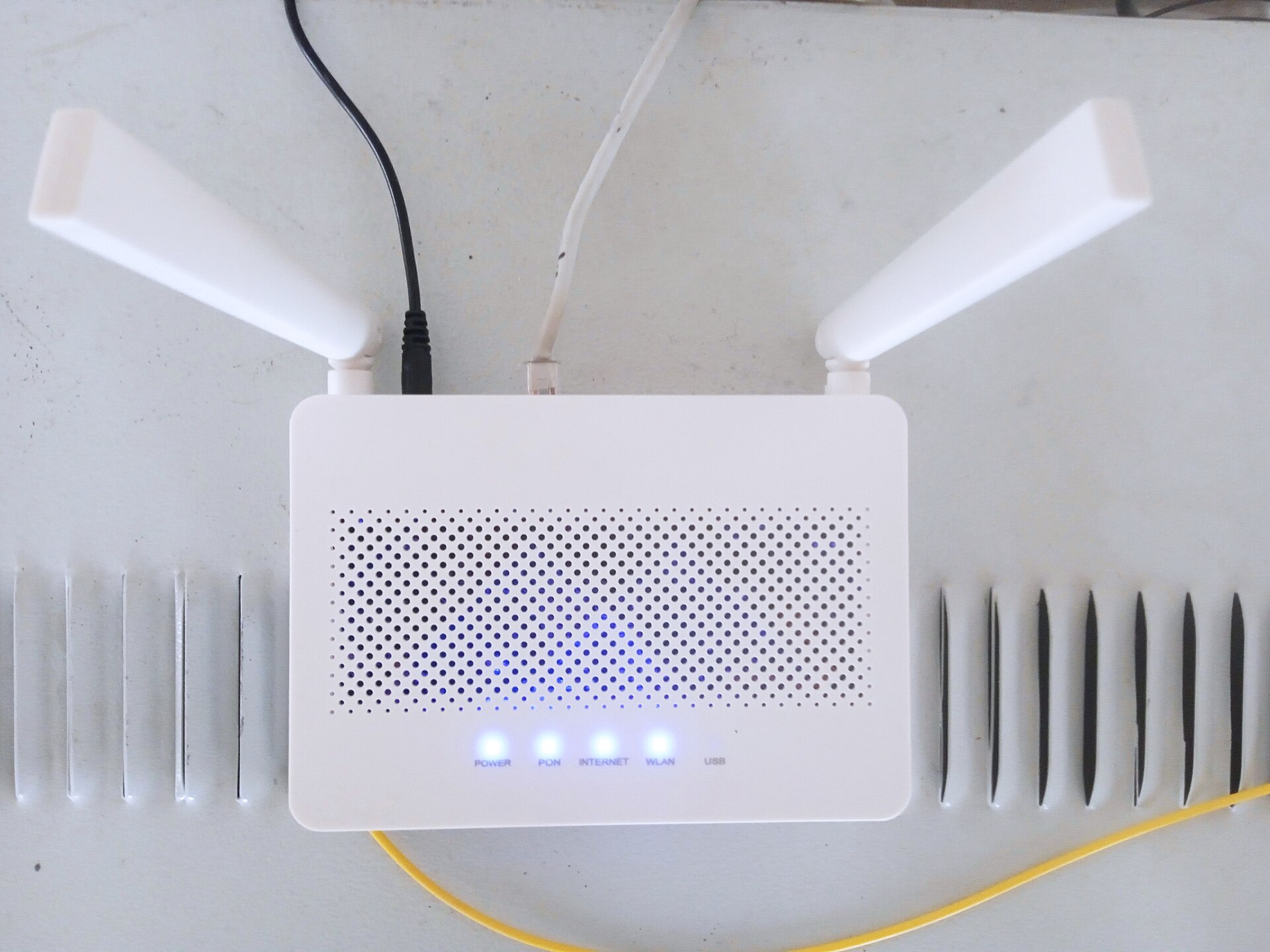
Router boxes are covered in big numbers and new acronyms: BE19000, tri-band, 320 MHz, MLO, 4K-QAM. Wi-Fi 7 is now widely available, and the question for most people is whether it's worth replacing a router that still works. This guide explains what each generation of Wi-Fi changed, what the specifications on the box really mean, and the situations in which an upgrade makes a noticeable difference. If your problem is coverage across a large home rather than speed, read our mesh Wi-Fi guide as well.
The generations at a glance
| Wi-Fi 5 (802.11ac) | Wi-Fi 6 (802.11ax) | Wi-Fi 6E | Wi-Fi 7 (802.11be) | |
|---|---|---|---|---|
| Bands | 5 GHz (routers add older 2.4 GHz Wi-Fi) | 2.4 and 5 GHz | 2.4, 5 and 6 GHz | 2.4, 5 and 6 GHz |
| Widest channel | 160 MHz | 160 MHz | 160 MHz | 320 MHz (6 GHz only) |
| Modulation | 256-QAM | 1024-QAM | 1024-QAM | 4096-QAM (4K-QAM) |
| Headline additions | Faster 5 GHz | Efficiency with many devices, better battery life | A new, uncrowded band | Multi-Link Operation, wider channels, puncturing |
Wi-Fi 6E is not a new standard but Wi-Fi 6 extended to the 6 GHz band. Wi-Fi 7 builds on both. Every generation is backwards-compatible, so older devices still connect to a new router, but only at their own generation's capabilities.
What Wi-Fi 6 changed: efficiency
Wi-Fi 6 was less about top speed than about handling busy networks. Its main features:
- OFDMA lets the router split a channel and serve several devices in one transmission, instead of making each wait its turn. It helps most in homes with many phones, laptops, TVs and smart devices.
- Target Wake Time lets devices agree when to wake up and check for data, which saves battery on phones and battery-powered smart-home gadgets.
- 1024-QAM packs more data into each transmission when the signal is strong.
For many homes still using a Wi-Fi 5 router from the ISP, a move to Wi-Fi 6 is the upgrade with the clearest everyday benefit.
What 6E added: the 6 GHz band
The 6 GHz band is wide and, because only newer devices can use it, far less crowded than 2.4 and 5 GHz. It's particularly useful in apartment buildings where dozens of neighbouring networks compete on 5 GHz. Its drawback is range: 6 GHz signals are weakened more by walls and floors, so it works best in the same room as the router or one room away.
How much of the 6 GHz band you can use depends on where you live. Canada and the United States opened the whole band for Wi-Fi; the UK and the EU opened only the lower portion, which leaves far fewer channels, particularly of the widest kind. Check the current rules in your country.
What Wi-Fi 7 adds
320 MHz channels. Doubling the channel width compared with Wi-Fi 6 roughly doubles the peak speed. These channels exist only on 6 GHz, and where the band is limited, as in Europe, there's room for very few of them. They also need a strong, short-range signal.
4K-QAM. Denser modulation raises peak speeds by about a fifth, but only when the device is close to the router with a very clean signal. At normal distances it makes little difference.
Puncturing. If part of a wide channel is busy, older standards had to drop to a narrower channel. Wi-Fi 7 can "punch out" the busy slice and keep using the rest, which makes wide channels more practical in crowded areas.
Multi-Link Operation (MLO). This is the most useful new feature, explained below.
Multi-Link Operation in plain terms
Before Wi-Fi 7, a device connected on one band at a time. If 5 GHz became congested, it stayed there or went through a slow switch to another band. With MLO, a Wi-Fi 7 device and router can maintain links on two or more bands at once and use whichever is clearest, or combine them.
There are two broad ways devices implement it:
- Simultaneous multi-link sends and receives on two bands at the same time, which can raise throughput and cut delays. It needs more radio hardware, so support varies from device to device.
- Single-radio multi-link listens on several bands but transmits on one at a time, switching very quickly to the clearest. It doesn't add speed, but it reduces lag and dropouts.
The practical benefit of MLO is consistency: steadier video calls, fewer lag spikes in online games, smoother streaming when the network is busy. It isn't mainly about peak speed. MLO works only when both the router and the device support Wi-Fi 7, and it requires WPA3 security. On some routers it's switched on in a setting or offered as a separate network name; older devices that only support WPA2 may need a separate or compatibility network. Check the router's settings and firmware notes.
Rule of thumb: a Wi-Fi 7 router makes your Wi-Fi 7 devices steadier and faster. It does nothing extra for your older devices, beyond what a good Wi-Fi 6 router already offers.
Reading the box: what the big numbers mean
Router names such as AX5400 or BE19000 are the sum of the theoretical maximum speeds of every band, in megabits per second. No single device ever gets that figure. A typical phone or laptop has two antennas (two "spatial streams") and connects to one or two bands, so it can use only a fraction of the total. Real speeds are lower again because of distance, walls and other networks.
Things on the box that matter more:
- Which bands it has. "Tri-band" can mean 2.4, 5 and 6 GHz, or 2.4 plus two 5 GHz radios with no 6 GHz at all. Some lower-cost Wi-Fi 7 routers are dual-band (2.4 and 5 GHz), which rules out 320 MHz channels entirely. If you want 6E or full Wi-Fi 7 features, confirm 6 GHz is included.
- Wired ports. If your internet plan is faster than 1 Gbps, look for a 2.5 GbE or faster internet (WAN) port and at least one fast LAN port. A multi-gigabit plan through a 1 Gbps port is capped at about 940 Mbps.
- Security and updates. WPA3 support and a clear record of regular firmware updates matter more than an extra gigabit on paper.
When an upgrade actually helps
A new router is likely to make a real difference if:
- Your current router is Wi-Fi 5 or older, or it's an old ISP-supplied unit.
- You have a plan faster than about 1 Gbps and wireless speeds fall well short of it close to the router.
- You live in a crowded building and your newer devices support 6 GHz.
- You have several recent Wi-Fi 7 phones or laptops and care about latency for calls or gaming.
- You transfer large files around the home, for example to a network drive.
It's unlikely to help if:
- Your internet plan is slow. Test first with a computer plugged in by cable; if that speed is low, better Wi-Fi won't change it.
- Most of your devices are Wi-Fi 5 or Wi-Fi 6, with no 6 GHz support.
- The problem is range. A faster router in the same corner won't fix a dead zone at the far end of the house; a better position, a wired access point or a mesh system will.
Also check devices' specifications. Look for "Wi-Fi 7" or "802.11be" on phones and laptops, and "Wi-Fi 6E" for 6 GHz support. Many smart-home devices use only 2.4 GHz and older Wi-Fi, so they won't benefit at all; our smart home standards guide covers how those devices connect.
The short version
- Test your wired speed first; Wi-Fi can't be faster than your plan.
- Wi-Fi 6 is the sensible baseline and the clearest upgrade from Wi-Fi 5.
- Wi-Fi 6E adds the uncrowded 6 GHz band, useful in dense buildings with newer devices.
- Wi-Fi 7 adds MLO for steadier connections and wider channels for higher peaks, but only for Wi-Fi 7 devices and at short range.
- Ignore the headline number. Check bands (especially 6 GHz), multi-gig ports, WPA3 and firmware support instead.
- For coverage problems, think placement and mesh, not a faster single router.
Bloiq is reader-supported. Some links may earn us a commission; it never affects what we write. How we make money.
Cover photo: Solijon Solayev, CC BY-SA 4.0, via Wikimedia Commons