Wireless CarPlay and Android Auto adapters and aftermarket screens
How wireless CarPlay and Android Auto adapters work, what causes lag and dropouts, and how replacement head units and dash-top screens compare for older cars.
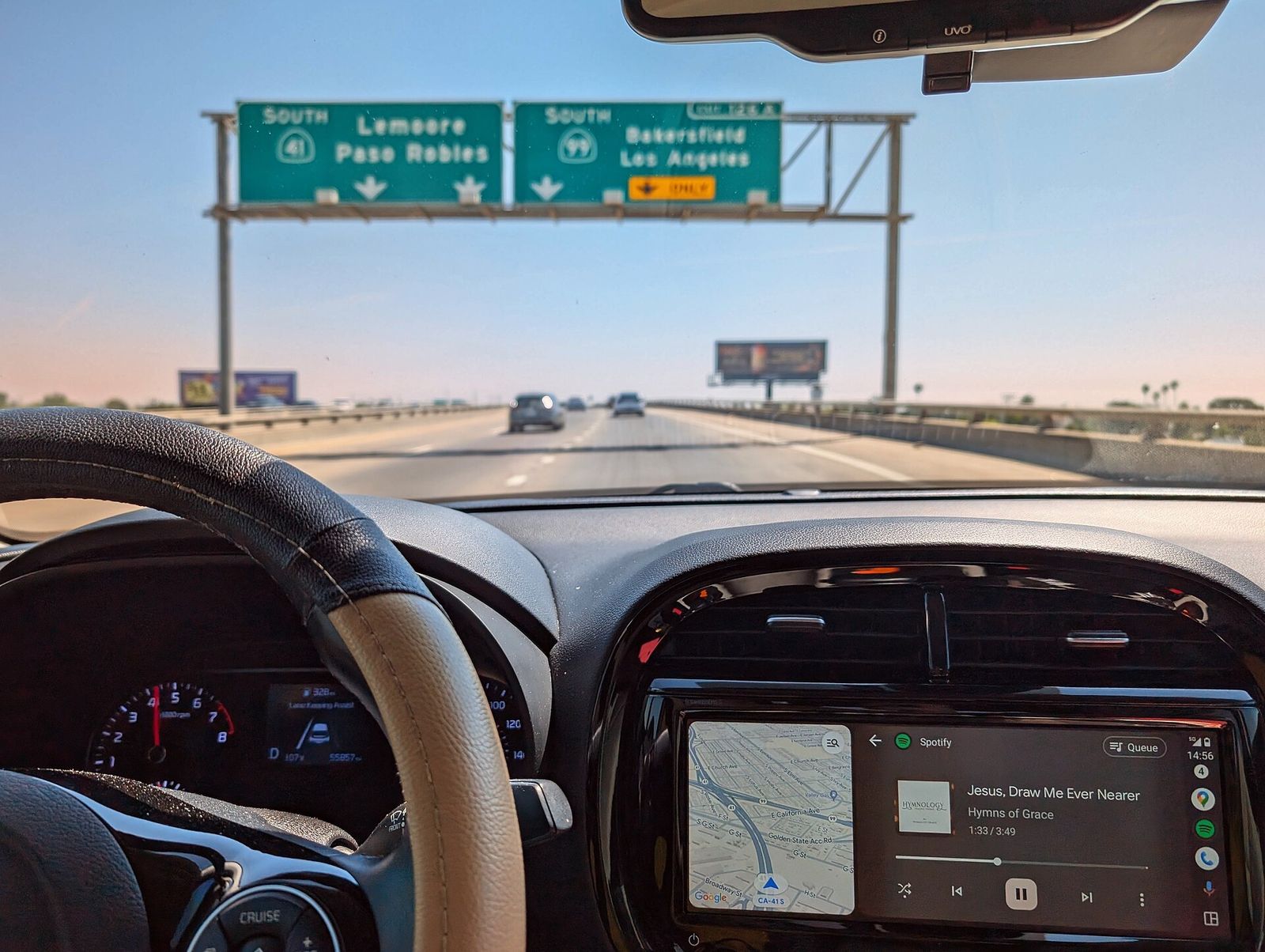
Apple CarPlay and Android Auto put your phone's maps, music and messages on the car's screen with controls designed for driving. Many cars support them only with a cable, and older cars not at all. Two kinds of product fill the gap: small adapters that make a wired system wireless, and aftermarket screens that add CarPlay and Android Auto to cars that never had them. This guide explains how each works and the trade-offs to expect.
How CarPlay and Android Auto work
With both systems, your phone does the work. The apps run on the phone, which sends a video stream of the interface to the car's screen and receives your touches, button presses and voice commands back. The car's display acts as a screen, speaker and microphone for the phone.
- Wired connections use USB, which carries data and charges the phone.
- Wireless connections use Bluetooth to set up the link and handle some functions, and Wi-Fi (typically 5 GHz) to carry the video and audio.
That's why wireless needs a capable head unit or adapter, and why it drains the phone battery faster: the phone is streaming video over Wi-Fi while running navigation.
Wireless adapters: what they do
A wireless adapter is a small box that plugs into the car's USB port. To the car, it looks like a phone connected by cable; to the phone, it looks like a car offering a wireless connection. It relays everything between them.
The key requirement: your car must already support wired CarPlay or Android Auto from the factory. An adapter can't add either system to a car that lacks it.
Variants include:
- CarPlay-only or Android Auto-only adapters, and dual models that support both;
- adapters that let an Android phone connect wirelessly to a car that only supports wired CarPlay, with mixed results depending on the car;
- "streaming boxes" that run their own Android system and apps on the car's screen. These go beyond an adapter, and quality, updates and security vary widely.
Latency, connection time and reliability
The extra wireless hop, plus the adapter's processing, adds some delay:
- Touch and scroll lag: a short but sometimes noticeable delay between touching the screen and the response.
- Audio delay: pressing skip or pause may take a moment; navigation prompts and music can briefly overlap.
- Start-up time: the adapter has to boot and connect when you start the car, which can take noticeably longer than plugging in a cable, sometimes tens of seconds.
- Dropouts: interference, a phone overheating or a weak USB power supply can cause disconnections.
How noticeable this is depends on the adapter, the car's head unit and the phone. Firmware updates often improve compatibility and connection times, so a maker with a history of regular updates is worth favouring.
Rule of thumb: a wireless adapter trades a little responsiveness and phone battery for convenience. If you mostly make long trips, a cable plus a good mount may still be better; for short hops in and out of the car, wireless is hard to beat.
Phone battery and heat
Wireless projection uses more power than a cabled connection, and nothing charges the phone unless you add a charger. On long trips:
- a wireless charging mount keeps the phone topped up, though the combination of charging, navigation and streaming can make phones hot and throttle or pause charging; see our guide to phone mounts and wireless car chargers;
- a USB-C cable to a separate charging port is the most reliable way to stay charged;
- keep the phone out of direct sun and away from heater vents.
Aftermarket screens: two main types
1. Replacement head units swap out the car's radio for a unit with a touchscreen, often in single-DIN or double-DIN sizes, or with a large "floating" screen on a single-DIN body.
- Most offer wired CarPlay and Android Auto; many also support wireless.
- Installation usually needs a dash kit (trim), a wiring harness adapter, an aerial adapter and often a steering-wheel control interface.
- In newer cars, the factory radio may also control climate settings, vehicle settings, the reversing camera, a factory amplifier or warning chimes. Integration modules can retain some of these, but not always all of them, so check compatibility for your exact vehicle.
2. Dash-top or portable screens are standalone displays that mount on the dashboard or windscreen and plug into a 12 V socket or USB port.
- No dismantling; easy to move between cars.
- Audio usually reaches the car's speakers by Bluetooth, an AUX cable or an FM transmitter; FM transmitters are the weakest option for sound quality and can suffer interference.
- Cables to the power socket need tidy routing so they don't hang across controls.
What to check on a screen
- Wired and wireless support for the system your phone uses.
- Screen type and brightness: a capacitive touchscreen with good brightness and an anti-glare finish is easier to use in daylight.
- Microphone quality and placement, which matters for calls and voice assistants; an external microphone mounted near the driver usually works better.
- Reversing camera input, if you have or want one.
- Audio outputs: preamp outputs and equaliser settings matter if you plan to add amplifiers; see our guide to car audio upgrades.
- Software updates: generic Android-based units in particular can run outdated software.
Installation and safety
- Adapters are plug-and-play: plug into the USB port that supports CarPlay/Android Auto, pair the phone, and update the firmware.
- Head units are a moderate DIY job for many cars, involving trim removal and wiring. Airbags, CAN-bus integration and factory amplifiers make some cars much harder; a professional installer is sensible if you're unsure.
- Mount screens so they don't block your view of the road or sit in an airbag's deployment path, and keep them within easy reach.
- Set destinations and playlists before you drive, use voice control, and keep glances short.
- Many places restrict handheld phone use, screen placement and video visible to the driver while driving. Rules vary by province/state; check local law.
If you also use a dash cam, plan where each device goes so they don't crowd the windscreen.
The short version
- CarPlay and Android Auto run on your phone; the car's screen is a display.
- A wireless adapter works only if the car already supports wired CarPlay or Android Auto.
- Expect a little lag, longer connection times and more battery drain than with a cable.
- Replacement head units add both systems to older cars but may affect factory features; check compatibility.
- Dash-top screens are easy to fit; prefer Bluetooth or AUX audio over FM.
- Mount safely, set up before driving, and check local rules on screens.
Bloiq is reader-supported. Some links may earn us a commission; it never affects what we write. How we make money.