Webcams and USB microphones for calls: what really improves quality
Why sensor size and lighting matter more than 4K for webcams, and how microphone pickup patterns, placement and room echo shape how you sound on video calls.
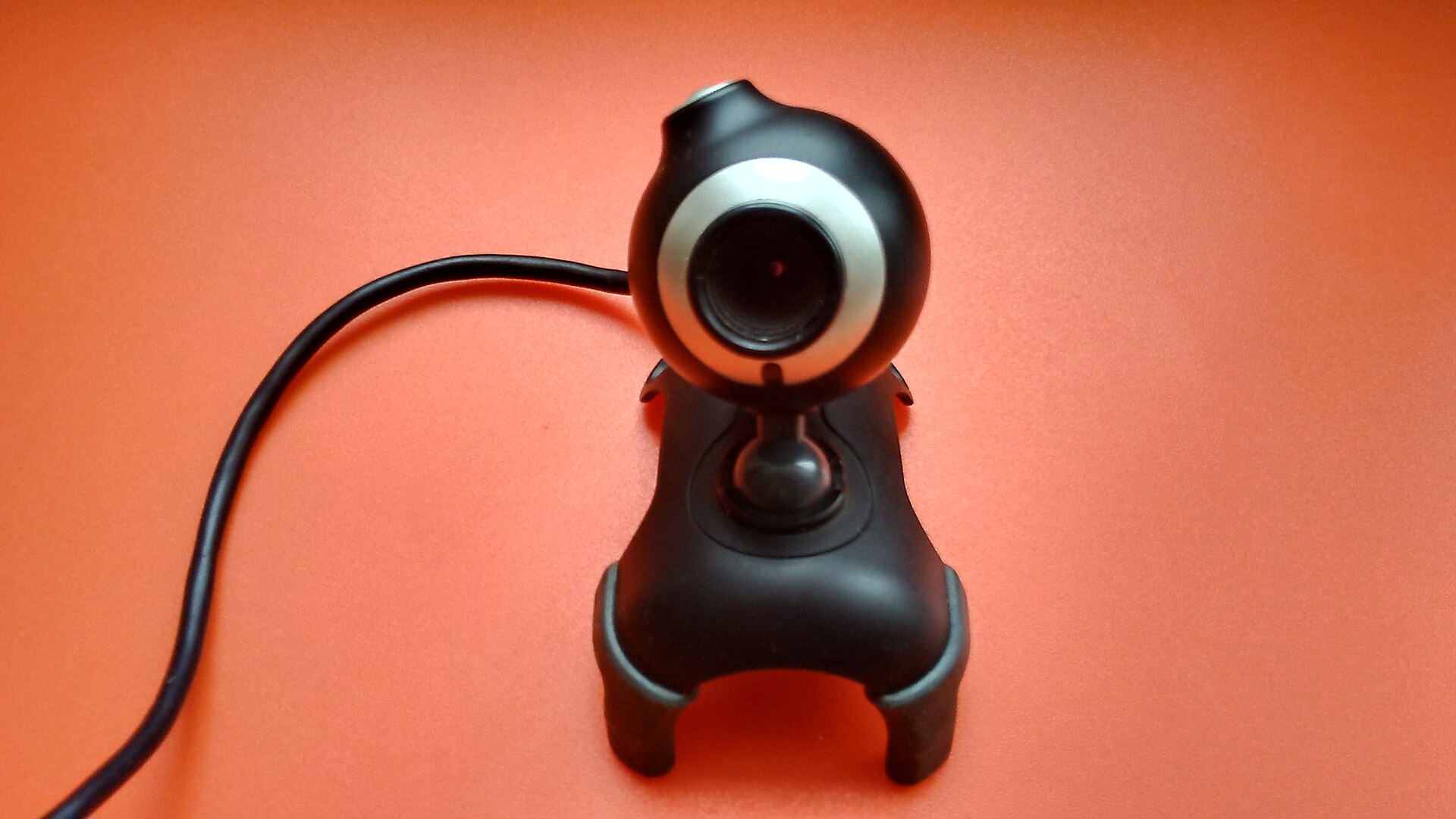
Built-in laptop cameras and microphones are usually the weakest parts of a computer (our guide to choosing a laptop covers the rest), and it shows on video calls: grainy images, harsh shadows and a voice that sounds as if it's coming from the next room. An external webcam and a USB microphone can fix both, but the headline specification, resolution, is rarely what makes the difference. Sensor quality, lighting, microphone type and placement matter more. This guide explains what to look for and the free fixes to try first.
Why 4K is not the main thing
Webcams are sold as 1080p, 1440p or 4K, but most video-calling services compress your stream heavily and often send it at 720p or 1080p, depending on the service, settings and your connection. Extra resolution mainly helps if you:
- Record video locally rather than streaming it.
- Use digital zoom or auto-framing, which crops into the image.
- Want a sharper image for presentations or content creation.
For everyday calls, a good 1080p webcam is usually enough. Beyond that, the qualities below decide how you look.
Sensor size, lens and low light
A webcam's image sensor collects light. Larger sensors, and lenses with wider apertures (a smaller f-number, such as f/2.0 rather than f/2.8), gather more light, which means less grain and more natural colour in a dim room. Makers don't always publish sensor size, but reviews and sample footage in ordinary indoor lighting are a better guide than resolution.
Other features to check:
- Autofocus keeps you sharp if you lean forward or hold something up. Fixed-focus cameras are fine if you stay at a steady distance.
- Frame rate: 30 frames per second is standard; 60 fps looks smoother, but often only at lower resolutions or in good light.
- Field of view: around 65–80 degrees frames one person at a desk. Wider views show more of the room, including the clutter behind you.
- HDR or backlight correction helps if there's a window behind you.
- Privacy shutter: a physical cover you can slide across the lens.
- Mounting: a clip that grips your monitor securely, and a standard tripod thread for flexibility.
Most webcams follow the USB Video Class (UVC) standard and work without extra drivers on Windows, macOS, Linux and ChromeOS. Optional software may add controls for exposure, colour and framing.
Lighting does more than any camera
Good lighting can make a modest webcam look far better than an expensive one in a dark room.
- Face the light. Sit facing a window or lamp, not with it behind you, which turns you into a silhouette.
- Light from the front and slightly to one side, at about eye height, gives natural shadows.
- Soft light is kinder. A lamp with a shade, or a window with a thin curtain, is better than a bare bulb.
- Avoid mixed colours. Daylight is bluish and many bulbs are warm; a mix can give you an odd colour cast. Match your lamps to the time of day you usually call, or use a light with adjustable colour temperature.
- An LED panel or ring light helps in dim rooms. Keep it bright enough to fill in shadows but not so bright that you squint.
Raise the camera to eye level, roughly an arm's length away. A laptop stand or a few books under the laptop helps more than most upgrades.
USB microphones: how they work
A USB microphone contains its own converter and connects directly to a computer, usually without drivers. XLR microphones, used in studios, need a separate audio interface. For calls, a USB microphone is simpler and perfectly capable. Some models offer both connections.
Condenser microphones are sensitive and detailed, which suits quiet, furnished rooms, but they also pick up keyboard noise, echo and the fridge. Dynamic microphones are less sensitive and need to be closer to your mouth, but they reject more background noise and room echo, which makes them forgiving in untreated rooms.
Microphone pickup patterns
A microphone's polar pattern describes the directions it listens in.
| Pattern | Picks up | Good for |
|---|---|---|
| Cardioid | Mostly the front; rejects the rear | One person at a desk: the usual choice |
| Supercardioid / hypercardioid | A narrower area in front, with a small rear lobe | Noisier rooms, when the mic can be close |
| Omnidirectional | All directions equally | Several people around one mic in a quiet room |
| Figure-8 (bidirectional) | Front and back, not the sides | Two people facing each other |
| Stereo | Left and right separately | Recording music or ambience, not calls |
Some USB microphones let you switch between several patterns. For calls, cardioid is almost always the right setting.
Placement and the room
- Get close. Around 10–30 cm from your mouth, slightly off to the side, gives a clear voice and less room sound. A microphone at the back of the desk hears the room more than you.
- Use a boom arm or stand to bring the mic close without it being in the camera's view.
- Isolate vibrations. A shock mount or a pad stops keyboard taps and desk bumps being heard.
- A pop filter or foam windscreen softens hard "p" and "b" sounds.
- Soften the room. Curtains, rugs, cushions and bookshelves reduce echo. Bare walls and hard floors make any mic sound hollow.
Features worth having
- Gain control on the microphone, so you can set the level without digging into software.
- Hardware mute button with a clear indicator light.
- Headphone jack with direct monitoring, to hear yourself without delay.
- Sample rate of 48 kHz and 16- or 24-bit depth is more than enough for calls.
- Noise suppression in your calling app or the microphone's software can remove steady background noise, but may make your voice sound processed if pushed too hard.
Use headphones or earbuds on calls when you can. With speakers, your microphone can pick up other people's voices and cause echo.
Don't forget the connection
A weak connection makes any camera look blocky. Video calls depend on your upload speed, and a wired Ethernet connection or strong Wi-Fi near your desk helps. Our mesh Wi-Fi guide covers improving coverage in a home office.
The short version
- Try the free fixes first: face a window or lamp, raise the camera to eye level, and wear headphones.
- A good 1080p webcam with a decent sensor and autofocus suits most calls; 4K helps mainly with recording and cropping.
- Choose a USB microphone with a cardioid pattern, placed 10–30 cm from your mouth.
- Prefer a dynamic mic in a noisy or echoey room, a condenser in a quiet, furnished one.
- Add a boom arm, a mute button and soft furnishings to reduce noise and echo.
Bloiq is reader-supported. Some links may earn us a commission; it never affects what we write. How we make money.