Mechanical keyboards explained: switches, layouts, hot-swap and wireless
Linear, tactile and clicky switches, keyboard sizes from full-size to 60%, ANSI versus ISO layouts, hot-swap sockets and wireless options explained for first-time buyers.
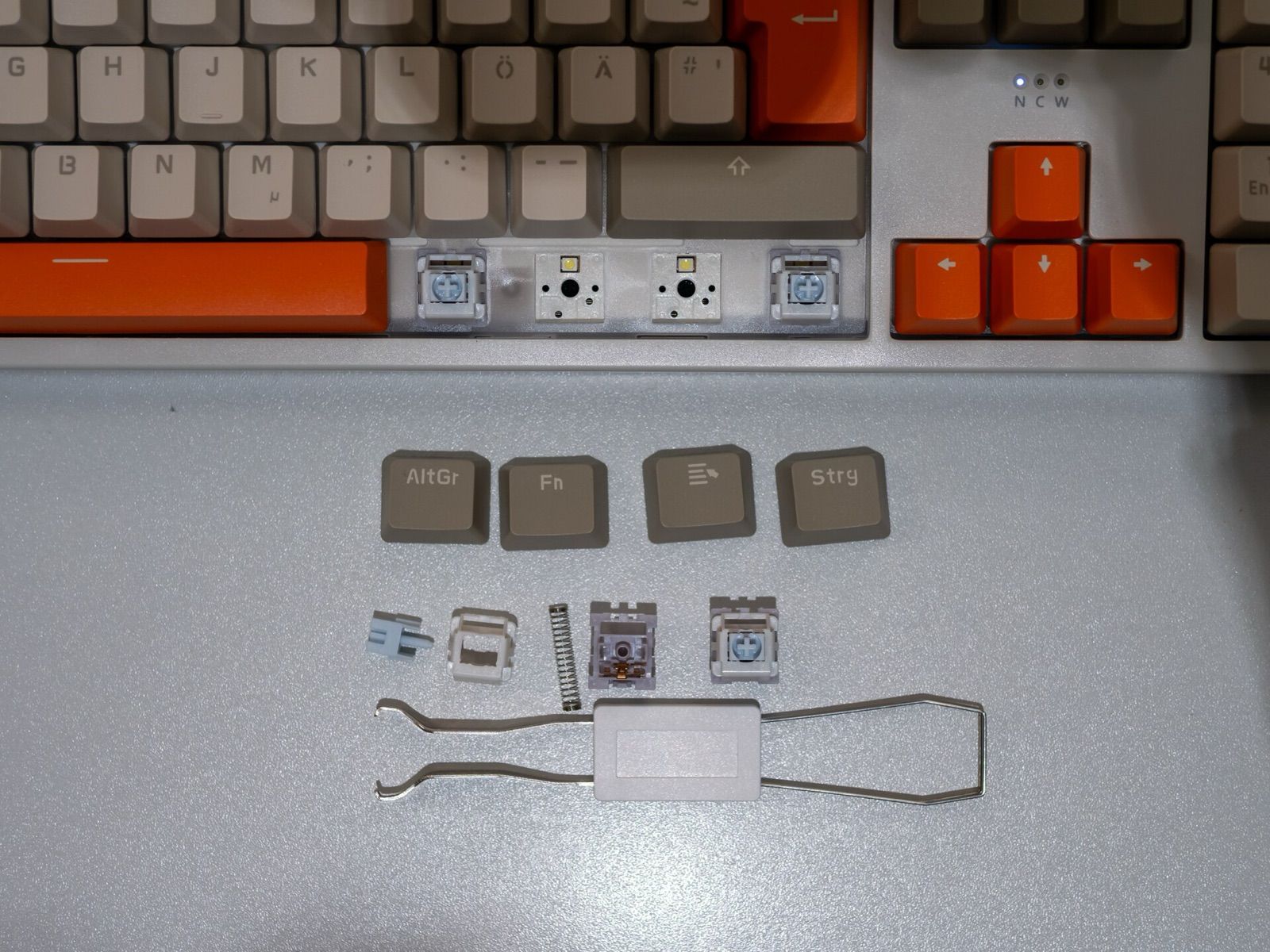
A mechanical keyboard uses an individual switch under every key, instead of the rubber dome sheet found in most office and laptop keyboards. The result is a more consistent feel, keys that can be replaced one by one, and a huge range of choices: switch types, sizes, layouts, keycaps and connection options. That range is also what makes the first purchase confusing. This guide explains the main decisions in the order that matters.
How mechanical switches differ
Every mechanical switch has a stem, a spring and electrical contacts (or, in some newer designs, an optical or magnetic sensor). Switches fall into three main families:
| Type | Feel | Sound | Good for |
|---|---|---|---|
| Linear | Smooth straight down, no bump | Quietest of the three | Gaming, fast repeated presses, people who dislike feedback |
| Tactile | A noticeable bump when the key registers | Moderate | Typing, where the bump confirms each press |
| Clicky | A bump plus a sharp click | Loud | Typists who like audible feedback, in a room of their own |
Many makers loosely follow a colour code (often red for linear, brown for tactile and blue for clicky), but it isn't a standard, and feel varies between brands. Read the description rather than relying on colour.
Other switch specifications:
- Actuation force, in grams or centinewtons: how hard you press before the key registers. Lighter switches feel fast but make typos easier; heavier ones suit people who rest their fingers on the keys.
- Actuation point and total travel: standard switches typically register around 2 mm down, with about 4 mm of total travel. Low-profile switches are shorter, closer to a laptop feel.
- Optical and magnetic (Hall effect) switches detect key presses without metal contacts. Magnetic switches often allow an adjustable actuation point and a "rapid trigger" mode popular for competitive gaming.
If you're unsure, a switch tester, a small board with several switch types, is an inexpensive way to feel the difference.
Sizes and layouts
Keyboard size describes how many keys and sections it has:
| Size | What's included | Consider |
|---|---|---|
| Full-size (100%) | Letters, function row, arrows, navigation cluster, number pad | Widest; mouse sits further away |
| Compact full-size (about 96%) | Nearly everything, squeezed together | Keeps the number pad in less space |
| Tenkeyless (TKL, about 80%) | Everything except the number pad | Popular balance of size and function |
| 75% | Function row and arrows, compressed navigation keys | Compact but still practical |
| 65% | No function row; arrows kept | Function keys through a second layer |
| 60% | Letters and numbers only | No arrows; heavy use of layers |
Smaller boards free up desk space and bring the mouse closer, which some people find more comfortable. The cost is using a function key to reach arrows, function keys or navigation keys. If you work with spreadsheets or enter lots of numbers, keep the number pad or plan for a separate one.
Layout is a separate question from size:
- ANSI is standard in Canada and the United States: a wide, single-row Enter key and a long left Shift.
- ISO is standard in the UK and much of Europe: a tall Enter key and an extra key beside a shorter left Shift.
- Language layouts such as UK English, Canadian French or German change the legends and some key positions.
Check that the keyboard matches the layout your computer is set to and that you're used to. Replacement keycap sets don't always include ISO or language-specific keys.
Ergonomic designs, including split keyboards and tented boards, can reduce wrist angle for some people. They take time to adapt to.
Hot-swap sockets
On a hot-swappable keyboard, switches sit in sockets and can be pulled out with a switch puller and replaced without soldering. That means you can:
- Try different switches without buying a new keyboard.
- Replace a faulty switch easily.
- Use different switches on different keys.
Check socket compatibility: most accept switches with the common cross-shaped (MX-style) stem, but some take only three-pin switches and others both three- and five-pin. Magnetic and low-profile switches generally use their own sockets. A non-hot-swap board is fine if you're happy with the switches it comes with.
Keycaps
Keycaps affect feel, sound and appearance.
- Materials: ABS plastic is common and smooth but can develop a shine with heavy use; PBT is typically more resistant to shine and has a slightly textured feel.
- Legends: double-shot legends are moulded from a second plastic and never wear off; dye-sublimated legends are also durable; printed legends can fade.
- Profiles such as Cherry, OEM, SA and XDA describe the height and shape of each row. Lower profiles suit most typists; tall, sculpted profiles are a matter of taste.
- Compatibility: most aftermarket keycaps fit MX-style stems. Check the set includes the right sizes for your layout.
Wired, Bluetooth or 2.4 GHz wireless
- Wired (usually USB-C) has no batteries, the lowest latency and nothing to pair.
- Bluetooth connects to laptops, tablets and phones without a receiver, and many keyboards remember several devices and switch between them. Latency is higher, which rarely matters for typing but can for fast games.
- 2.4 GHz with a USB receiver offers low latency suitable for gaming and a more stable link.
Many wireless models offer all three. Battery life varies widely, from days with bright RGB lighting on to months with lighting off. Charging over USB-C while using the keyboard wired is a useful fallback.
Other features worth checking
- Remapping software or open firmware such as QMK or VIA lets you change what each key does and create layers.
- Mac and Windows modes, with the right modifier keycaps for your system.
- Sound dampening: foam inside the case and gasket-mounted plates reduce hollow or pinging sounds.
- Build and weight: aluminium cases are heavier and more stable; plastic cases are lighter and more portable.
- Adjustable feet and a wrist rest, especially for taller keyboards.
- Backlighting, useful in dim rooms; shine-through keycaps let the light show through the legends.
If your desk setup includes calls, see our guide to webcams and USB microphones, and note that a clicky keyboard is easily picked up by a sensitive microphone.
The short version
- Choose linear switches for smoothness and gaming, tactile for typing feedback, clicky only where noise won't bother anyone.
- Pick a size you'll use: TKL or 75% suits most people; keep a number pad if you enter numbers often.
- Match the layout (ANSI, ISO or your language) to what you use now.
- Choose hot-swap if you want to experiment with switches.
- Consider PBT, double-shot keycaps and a keyboard offering wired, Bluetooth and 2.4 GHz connections if you use several devices.
Bloiq is reader-supported. Some links may earn us a commission; it never affects what we write. How we make money.
Cover photo: Matti Blume, CC BY-SA 4.0, via Wikimedia Commons
.jpg)