Home / Tech · Product overviews / Computers & Accessories / Internal Solid State Drives · More from Crucial
Crucial MX500 1TB SATA SSD: features, specs and who it suits
The Crucial MX500 1TB is a 2.5-inch SATA solid state drive with 3D NAND, 560/510 MB/s sequential speeds, power loss protection and AES 256-bit encryption.
This page contains an affiliate link, marked as such. If you buy through it, Bloiq may earn a commission at no extra cost to you.
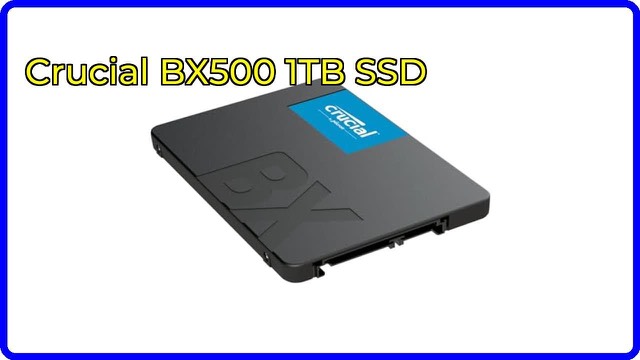
The Crucial MX500 is an internal solid state drive in the 2.5-inch SATA format, here in the 1TB capacity (model CT1000MX500SSD1). It is aimed at people who want to replace an older hard drive, or add storage, in a desktop or laptop that uses a SATA connection. Crucial says it brings faster start-up and file access than a spinning disk.
What the speed figures mean
Crucial rates the drive at sequential reads of up to 560 MB/s and sequential writes of up to 510 MB/s. Sequential speeds describe how fast large, continuous files such as videos or disk images move. The brand also gives random read and write figures of up to 95,000 and 90,000 operations per second (IOPS), and random speed is what matters most for everyday work: opening programs, loading the operating system and handling many small files.
SATA III has a ceiling of roughly 550-600 MB/s in practice, so these numbers are close to the most the interface allows. A drive that uses the NVMe format can be several times faster in sequential tests, but for general use a SATA SSD is a large step up from a hard drive.
3D NAND and what it changes
The MX500 uses 3D NAND, where memory cells are stacked in layers rather than laid out flat. In general this allows more capacity in the same chip area, and it is the technology behind most current mainstream SSDs. Crucial's description says the drive family goes up to 2TB, with this model being the 1TB version.
Power loss protection and encryption
Crucial lists "integrated power loss immunity", which it says preserves saved work if power is cut unexpectedly. In general, features of this kind are designed to protect data that is being written at the moment of an outage; they are not a substitute for backups.
The drive also offers AES 256-bit hardware-based encryption. Hardware encryption is done by the drive itself rather than by software on the computer. Using it usually requires a compatible system setup and a password or key managed through the computer's firmware or operating system, so check the manual and your system's documentation before relying on it.
Setting it up
The 2.5-inch format measures about 4.1 x 2.8 inches, with a thickness of around 0.3 inches (7 mm), which fits most laptop drive bays and many desktop cases through a bracket. Crucial says a step-by-step installation guide is available for first-time installers. Typical steps are:
- Back up your data, or plan to clone the old drive to the new one.
- Connect the SSD to a SATA data port and a SATA power connector (in a desktop) or place it in the laptop's drive bay.
- Clone the old drive or do a fresh operating system install, then check the drive appears in your system.
Who it suits
It suits owners of older laptops and desktops that have a SATA drive bay, people building a computer that needs a second drive for games, photos or documents, and anyone who wants a larger drive for a media library. It is not meant for machines whose only storage slot is M.2 NVMe.
What to check before you buy
- Connection: confirm your computer has a free 2.5-inch bay and a SATA port, or an adapter if you are using a different mount.
- Thickness: 7 mm drives fit most laptops, but check your model's bay.
- Capacity needs: 1TB is a decimal terabyte, so the operating system reports a somewhat smaller figure.
- Encryption: check what your system needs to use hardware encryption.
- Backups: an SSD does not replace a backup plan.
The short version
- A 1TB, 2.5-inch SATA internal SSD built on 3D NAND.
- Rated at up to 560 MB/s reads and 510 MB/s writes.
- Power loss protection and AES 256-bit hardware encryption are listed.
- Suits drive upgrades in SATA laptops and desktops.
- Check the bay, connector and your own backup routine first.
Bloiq is reader-supported. Some links may earn us a commission; it never affects what we write. How we make money.